Installing Reikan FoCal on Windows
FoCal 6 needs a 64-bit Windows PC running Windows 11 (24H2 or later). Windows 11 23H2 and Windows 10 22H2 may work, but aren't officially supported. Full details are on the Tech Specs page.
If you haven't downloaded FoCal yet, see the steps for a boxed copy or an online purchase.
Download the Installer
Log in to your FoCal account and go to the download page:
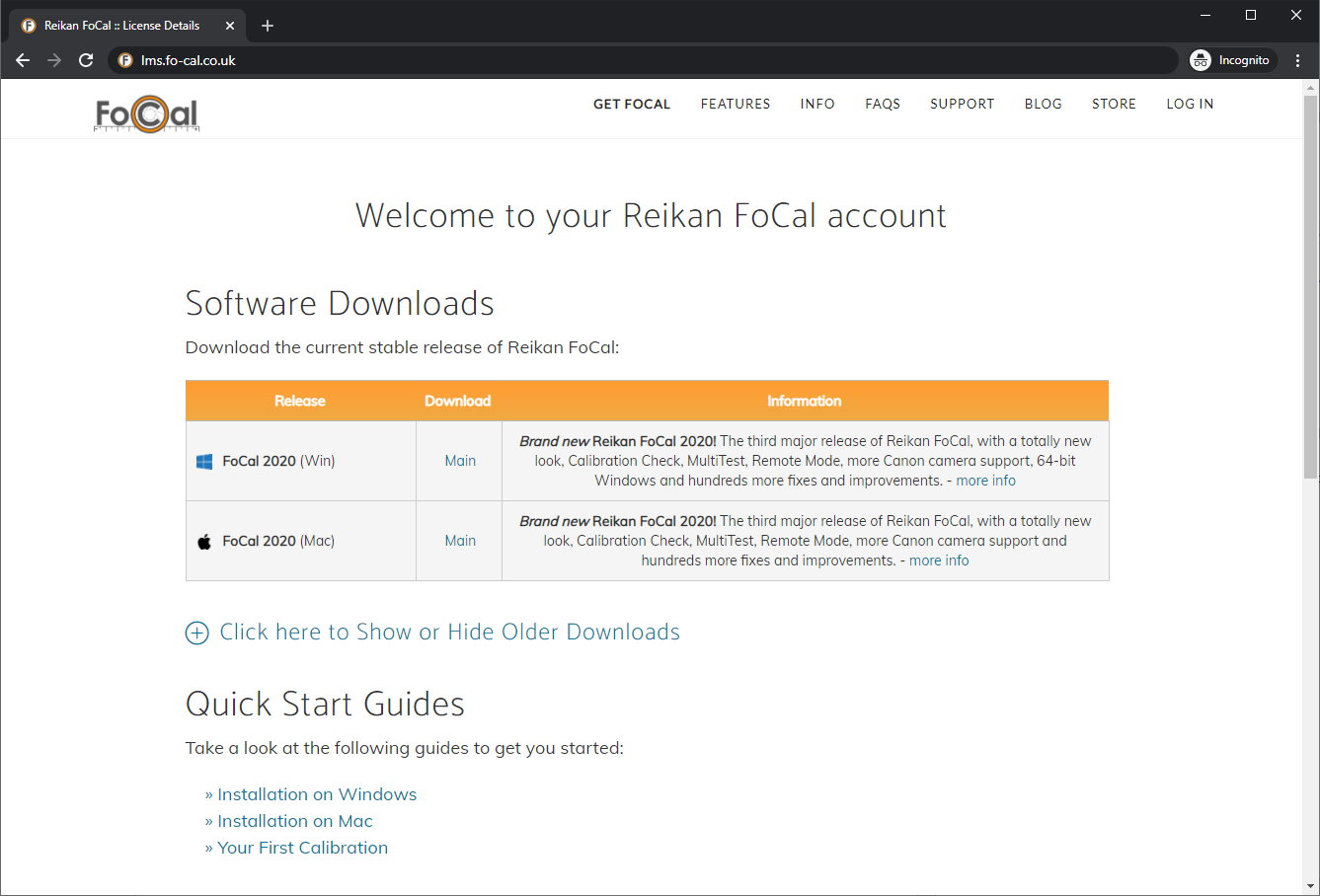
Click the download link for Windows. Your browser downloads the installer, FoCal-xxx.exe.
Open FoCal-xxx.exe from your browser's downloads list to start the installer.
Install FoCal
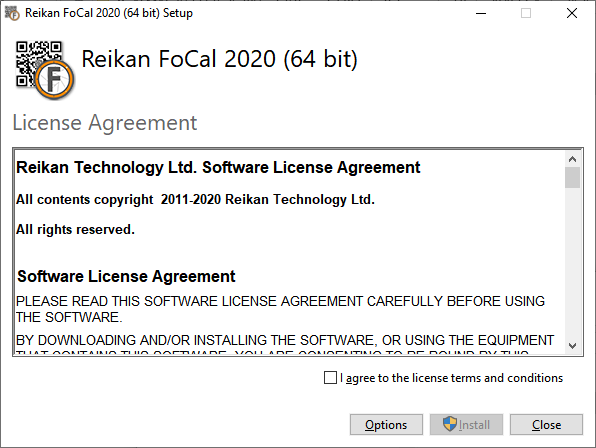
- Accept the licence agreement.
- Choose where to install FoCal. The default is Program Files\Reikan Technology\FoCal. If you're upgrading a copy installed in the old "FoCal 4" folder, the installer moves it to "FoCal".
- Choose whether to create a desktop shortcut.
- Click Install and wait for the installer to finish. You can start FoCal straight away from the last page of the installer.
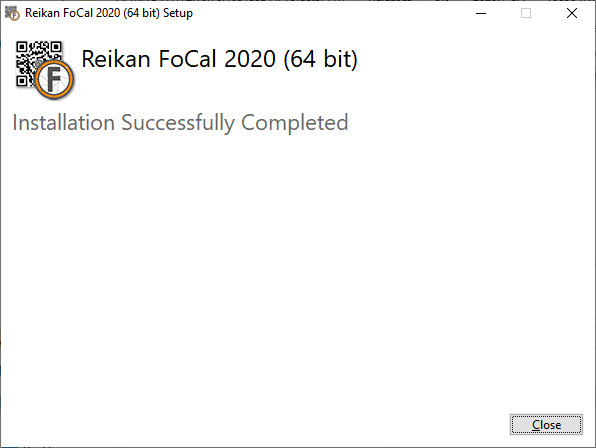
Start FoCal
Double-click the FoCal icon on the desktop, or open the Start menu and search for FoCal.
Install your Licence
The first time you run FoCal, enter the username and password from your FoCal login email, then click Continue. FoCal downloads your licence from the server.
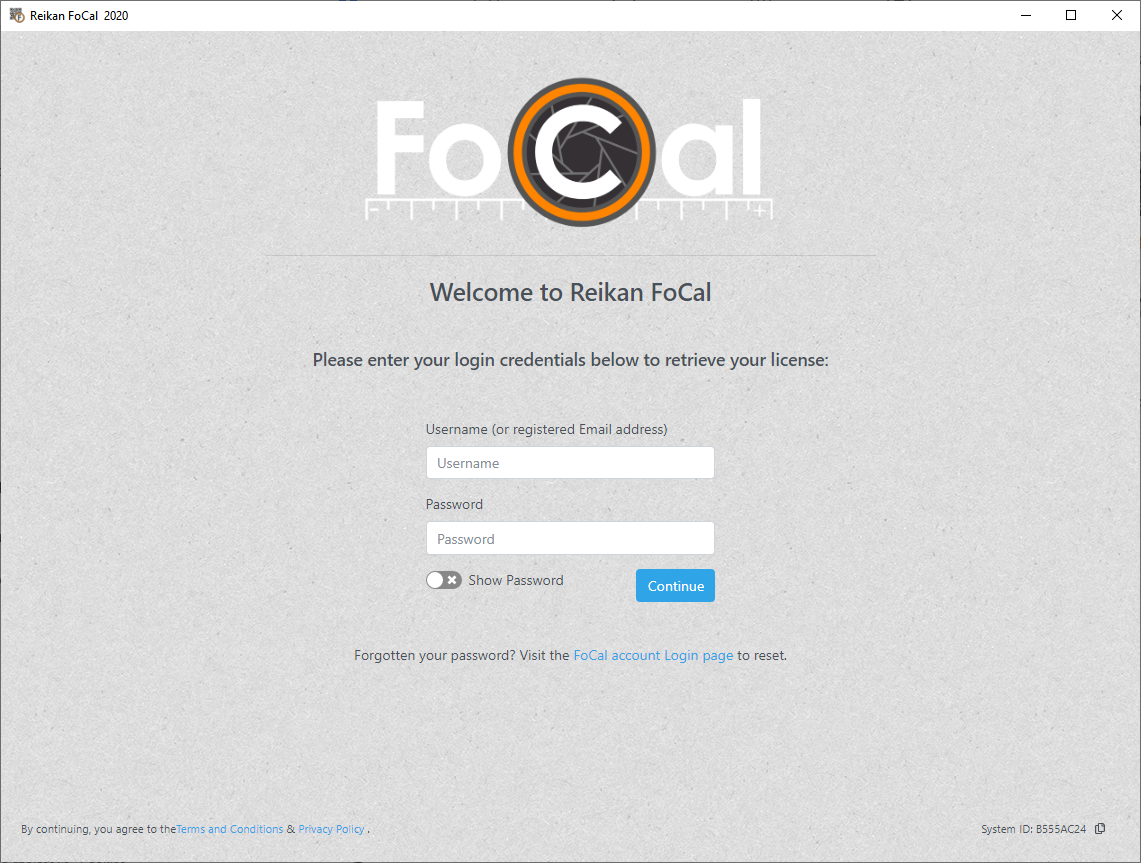
If you've forgotten your password, click the FoCal account Login page link to reset it. Your username is usually the email address you used when you bought FoCal. Commercial licence holders have a specific username.
FoCal installs your licence and starts up, ready to use.
Next Step
Now you're ready for your first calibration.