FoCal Mobile Debug Logging
Introduction
FoCal Mobile has a logging feature for capturing information about how the software is running, which can aid in diagnosing issues with the application.
The log contains only information about how the software is running, but this can include personal information such as camera serial numbers.
Things to note:
- Logging can change how the app behaves, so only turn it on when Reikan Support asks you to.
- Log files can get large, and logging stays on, even after restarting the app, until you turn it off. Turn it off when you no longer need it.
Enable Logging
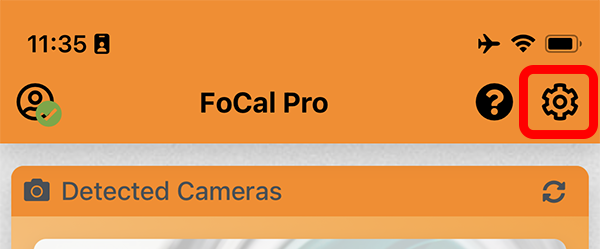
To turn on logging, tap the Settings button at the top right of the screen:
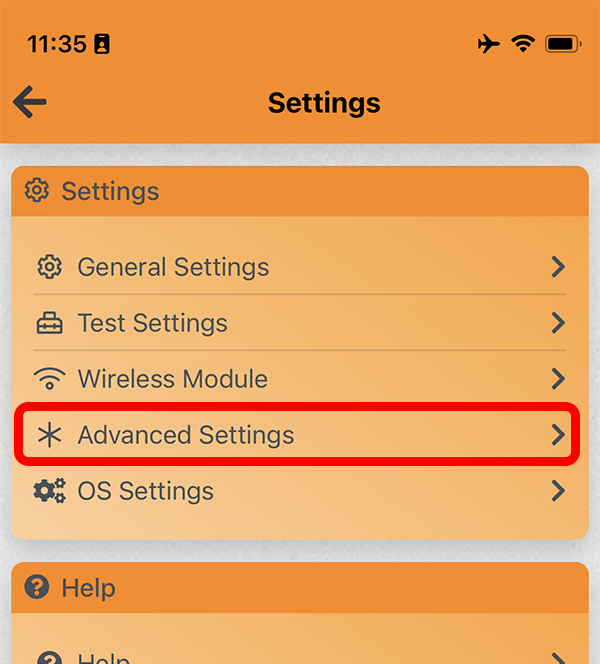
Choose Advanced Settings:
Tap the Enable Logging switch to turn it on.
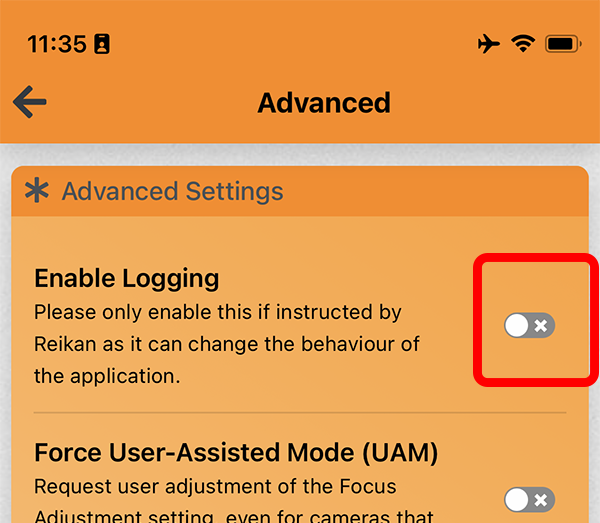
Logging starts straight away: everything you do in the app from now on is logged.
Note: Logging will stay active until you disable it.
Logging Indication
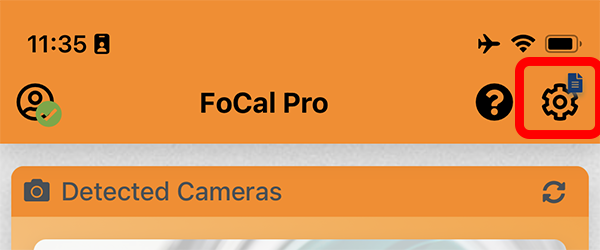
While logging is on, a small blue file marker is shown on the Settings button on the top bar.
Disable Logging
To turn off logging, go to Settings › Advanced Settings and turn off Enable Logging.
Accessing Log Files
Usually, we'll ask you to turn on logging, reproduce the problem, and then send us the log files.
Where the log files are depends on your phone or tablet: