Installing Reikan FoCal on Mac
FoCal 6 needs macOS 15 Sequoia or later (including macOS 26 and macOS 27). macOS 14 Sonoma is the minimum FoCal 6 runs on, but it isn't officially supported. Intel Macs are supported up to macOS 26. Full details are on the Tech Specs page.
If you haven't downloaded FoCal yet, see the steps for a boxed copy or an online purchase.
Download and Install
Log in to your FoCal account and go to the download page:
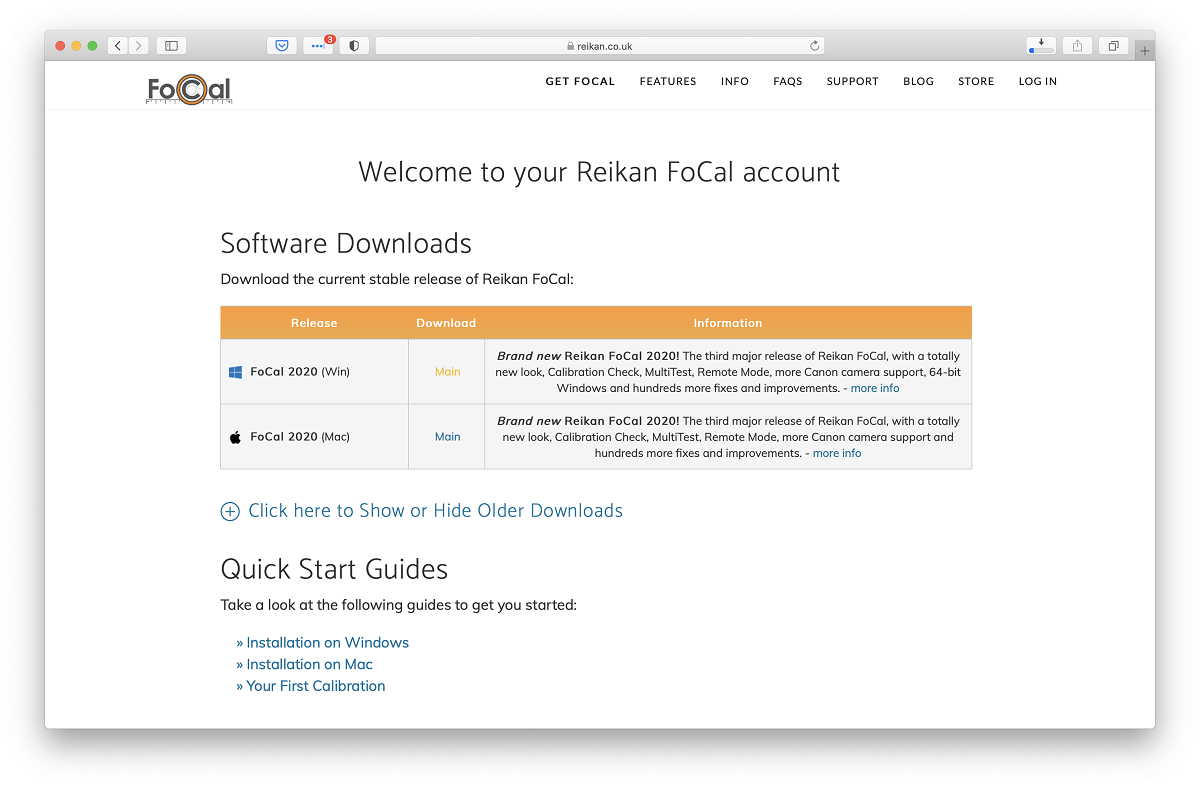
Click the download link for Mac. The download takes a few seconds:
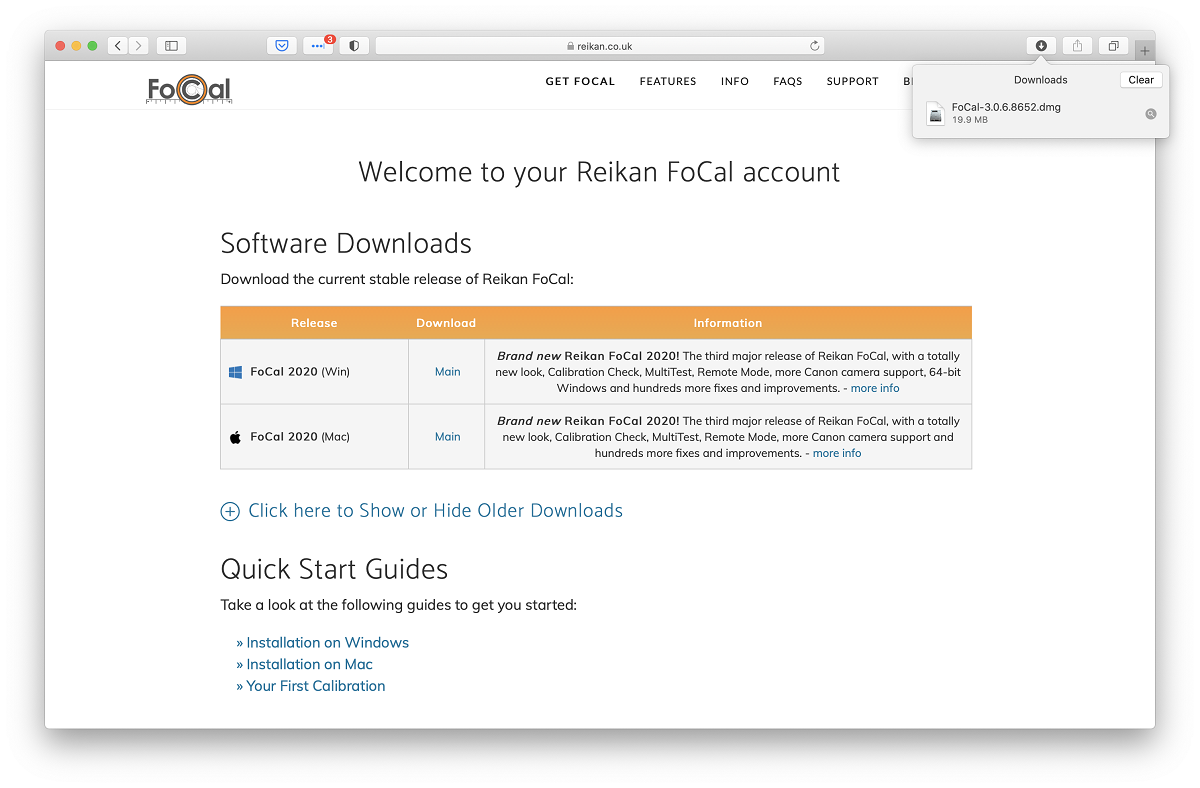
Open the downloaded FoCal-xxx.dmg file. In Safari, click the Downloads button at the top right of the window, then click the file:
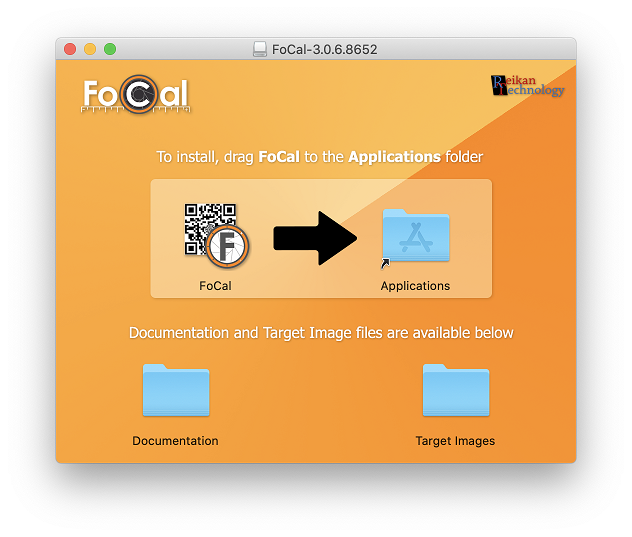
Drag the FoCal icon to the Applications folder, as shown in the window that opens.
Start FoCal
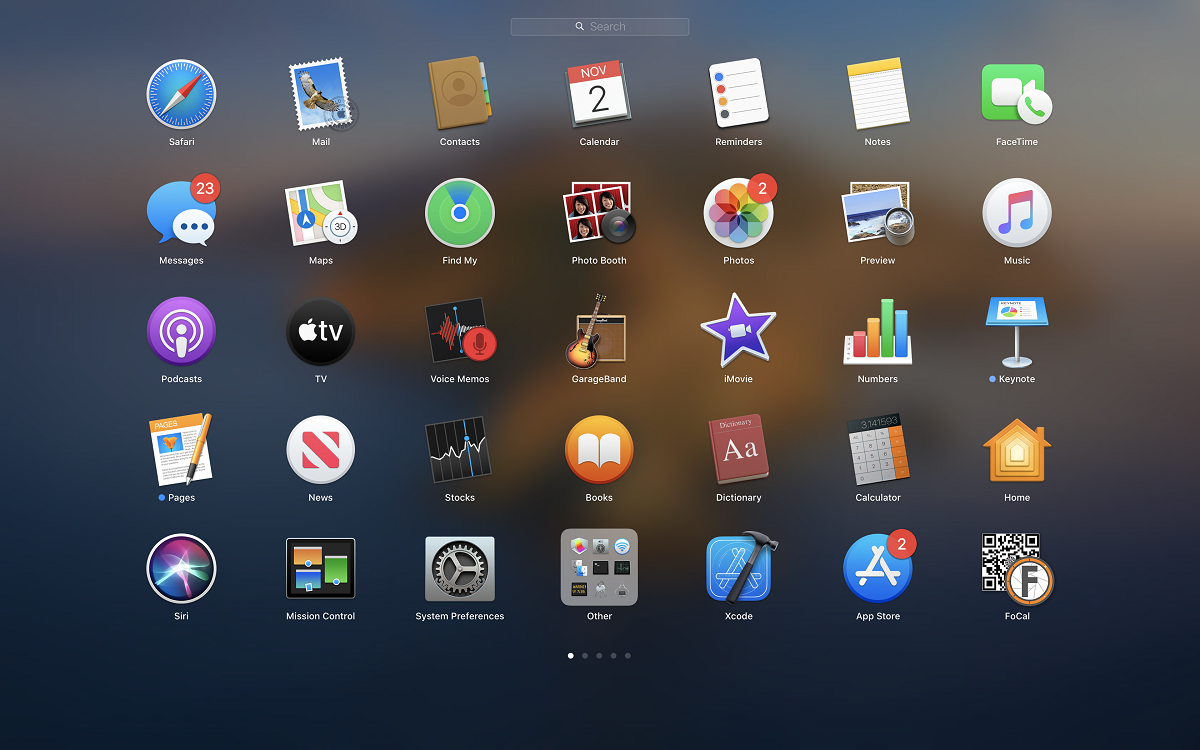
Open FoCal from your Applications folder, or find it with Spotlight or Launchpad:
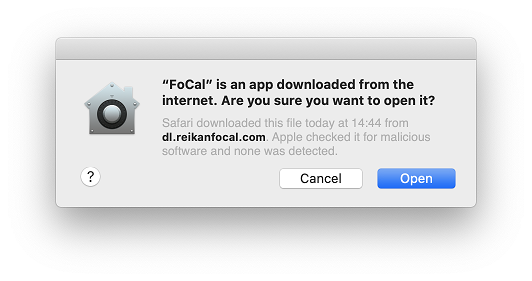
The first time you open FoCal, macOS may warn that it was downloaded from the internet. This is normal. Click Open.
Install your Licence
The first time you run FoCal, enter the username and password from your FoCal login email, then click Continue. FoCal downloads your licence from the server.
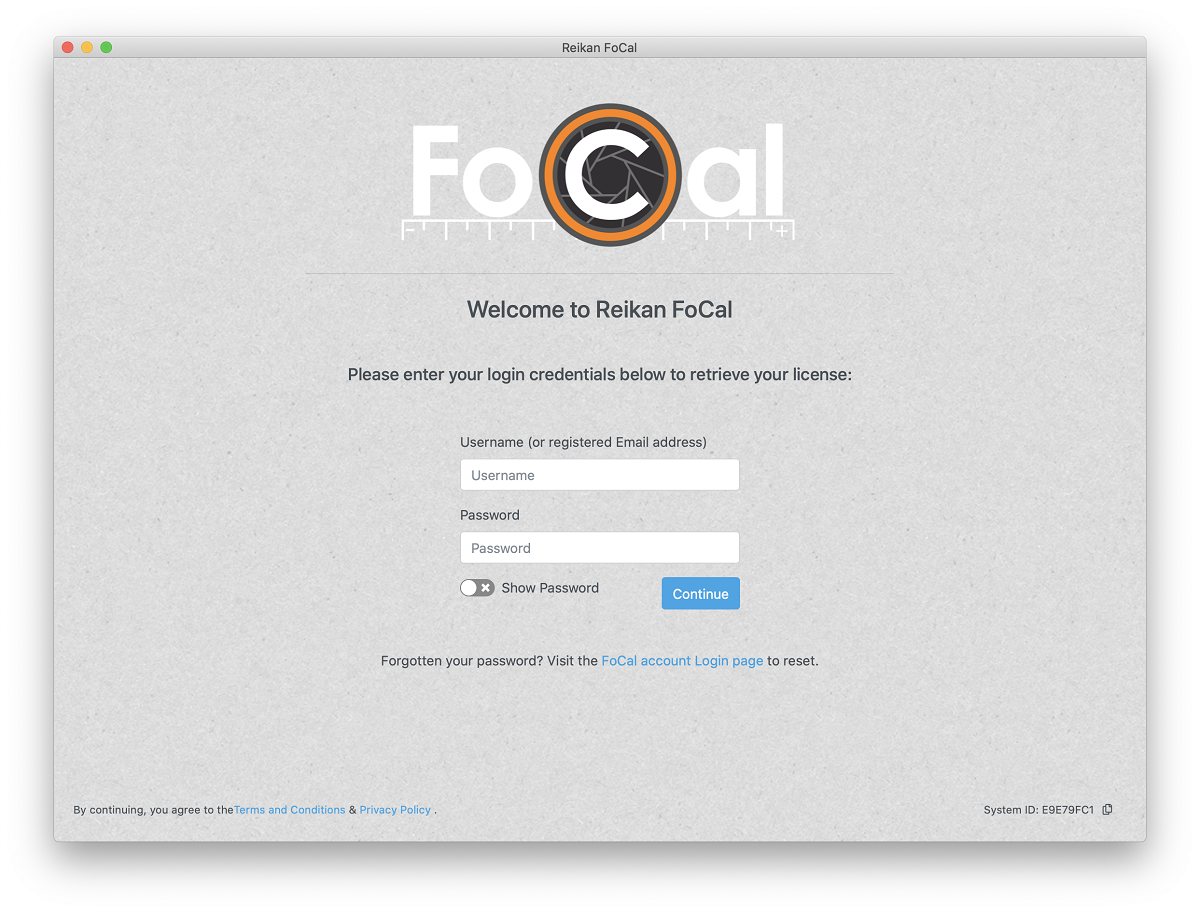
If you've forgotten your password, click the FoCal account Login page link to reset it. Your username is usually the email address you used when you bought FoCal. Commercial licence holders have a specific username.
FoCal installs your licence and starts up, ready to use.
Permissions
macOS asks you to give FoCal access to Photos and Removable Volumes. Allow both. FoCal can't control cameras over USB without them.
Why FoCal needs these permissions, how to grant them and how to check them: Mac Privacy Settings.
Next Step
Now you're ready for your first calibration.