Focus Calibration
On this page
Focus Calibration (Fully Auto calibration) finds the best autofocus adjustment value for your camera and lens (AF Microadjustment, AF Fine Tune and so on) at the touch of a button.
The result applies to this camera and lens, at the focal length and distance you tested.
Opening Focus Calibration
With a camera connected, choose Camera > Focus Calibration from the menu bar.
To analyse images you have already taken, choose File > Focus Calibration (if file mode is available with your licence).
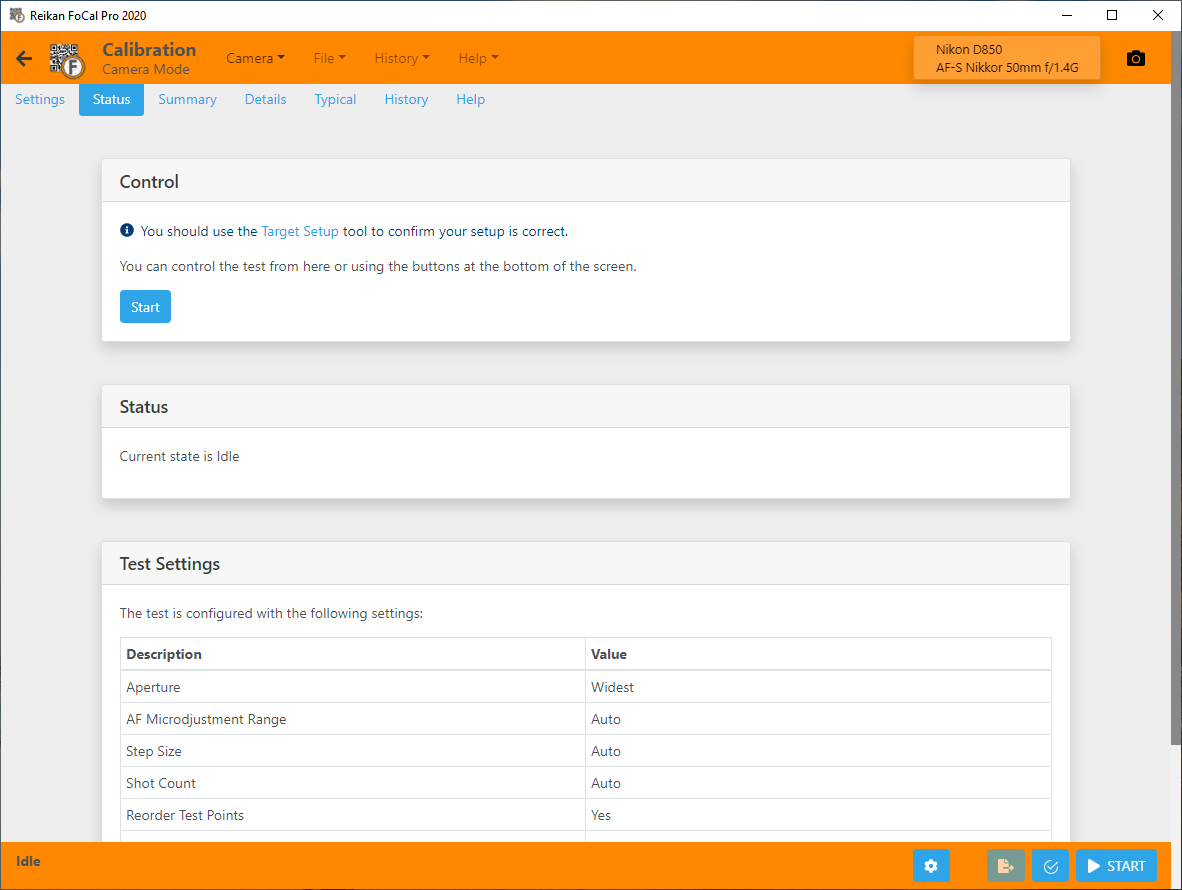
Set up the camera and target correctly before you calibrate. Target Setup checks your setup automatically, and this page has all the information you need. Run Target Setup before the calibration, otherwise the results may not be accurate.
Running the calibration
Press Start, either on the Status tab or on the control bar at the bottom of the window.
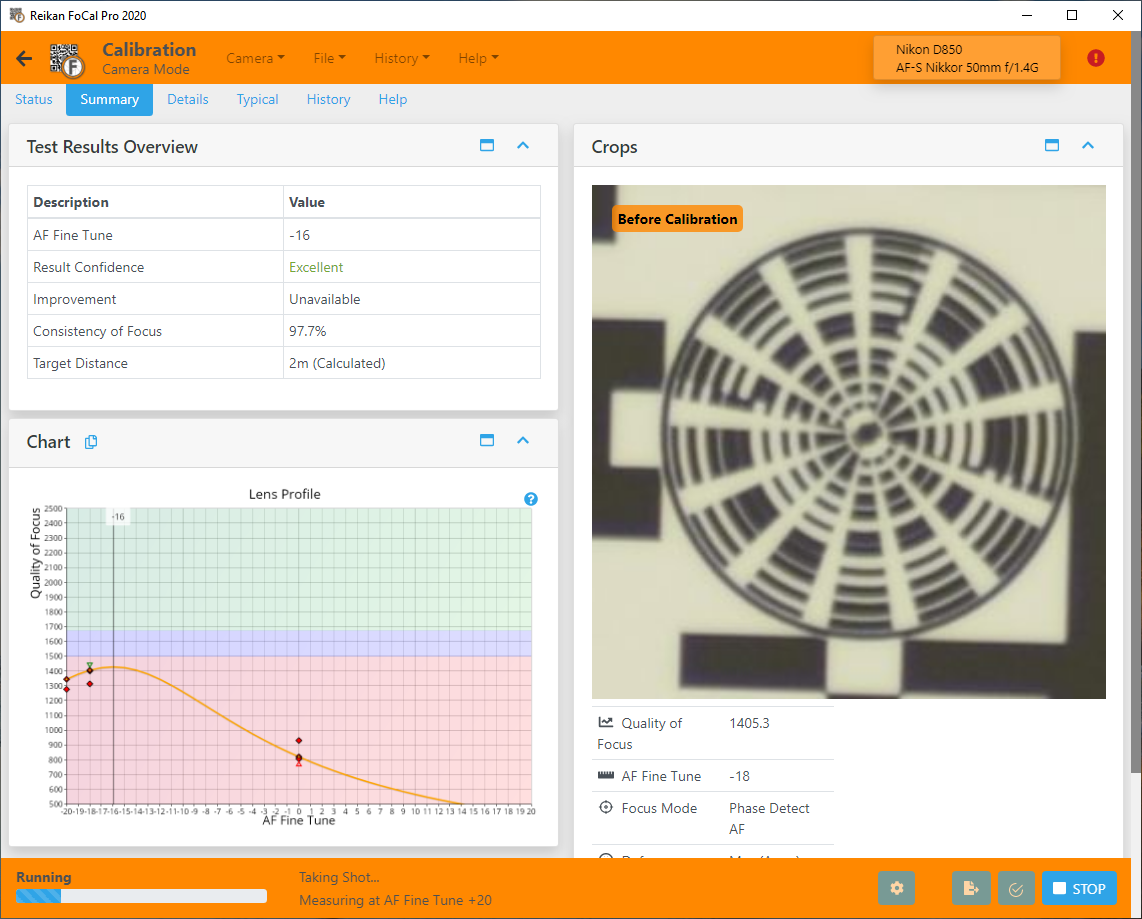
As the calibration runs, the screen updates with each shot:
Hands Free Mode and User Assisted Mode cameras
If your camera uses User Assisted Mode, FoCal asks you to change the Focus Adjustment setting on the camera during the test. With Hands Free Mode cameras, FoCal changes it for you. See the camera support list for your camera, and this page for details.
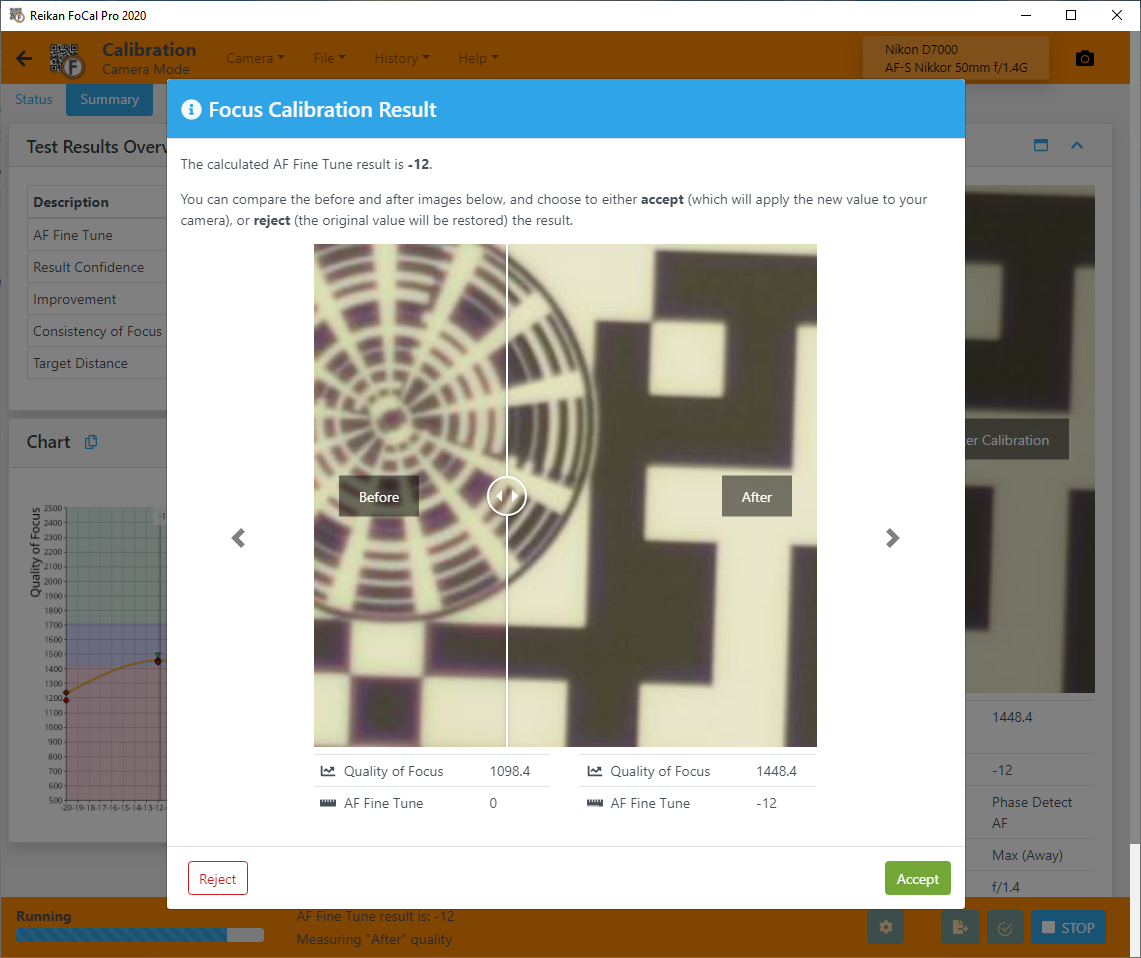
When the calibration is complete, FoCal shows the result in a message like this:
Reviewing the results
You can look at the charts and results while the calibration runs, but they may change until the test has finished.
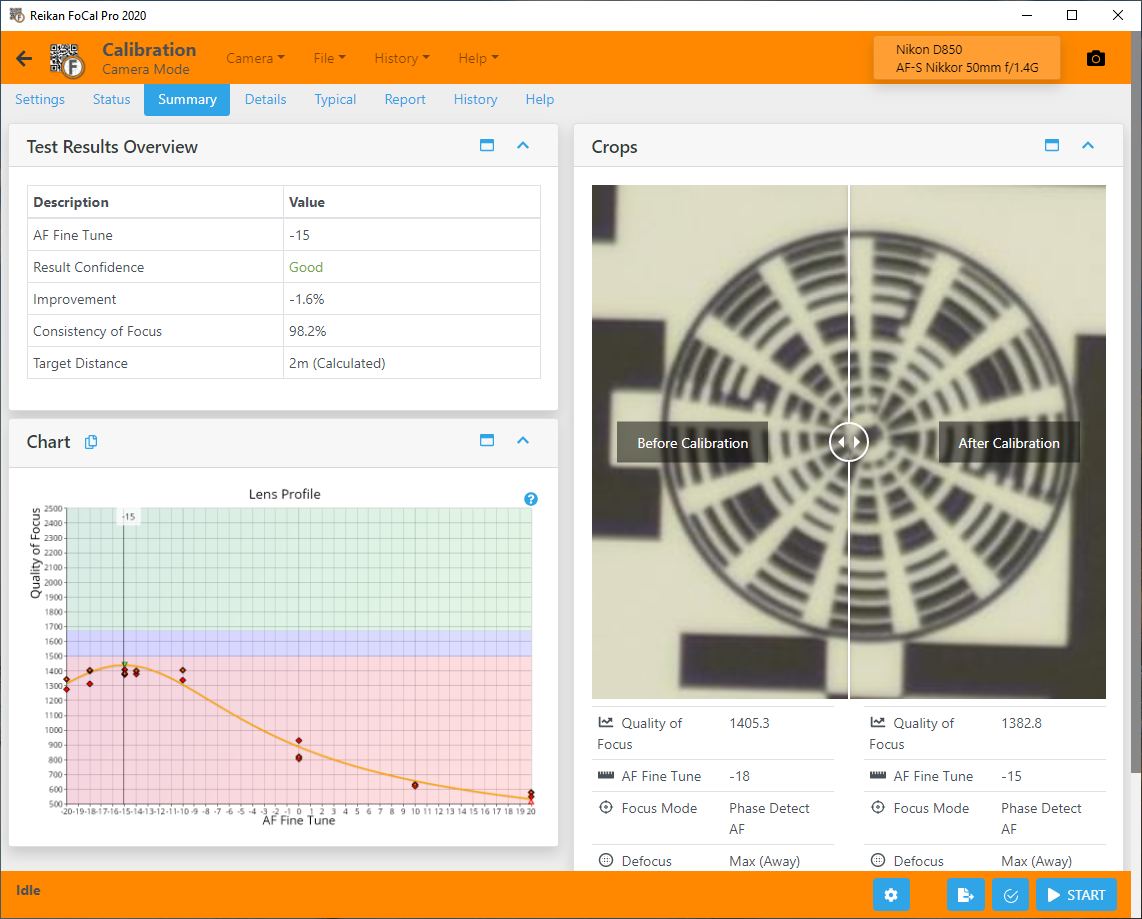
The Lens Profile chart shows how sharp the lens is across the Focus Adjustment range. The horizontal axis runs from -20 to +20. The vertical axis is sharpness, so the higher a marker, the sharper the image.
The calibration result is the value where the image is sharpest. In the screenshot above, this is around -16, shown by the black vertical line. Set this value in your camera.
The help button with each chart opens the detailed help page for that chart.
The test tabs
Some tabs only appear when the test is not running, and the Details, Scores, Compare, Report and History tabs need FoCal Pro.
Settings tab
The settings for this test. The defaults suit most people. See Settings – Calibration.
Status tab
The current state of the test and the settings it will use. This is the tab you see when you open the test. See Status Tab.
Summary tab
The main results (the Focus Adjustment result, Result Confidence, Quality Improvement, Consistency of Focus and Target Distance), the Lens Profile chart and a crop of the target.
Details tab
- Charts showing different aspects of the measurements (see below). Choose a chart from the list.
- All the results for the test.
- A list of every shot, and the capture settings for the shot you select.
- Crops of the image, including the analysed region of the selected shot.
Charts
Focus Calibration offers the following charts (click a link for details):
Lens Profile - Fully Auto Calibration
Historic Results - Fully Auto Calibration
Focus Consistency - Fully Auto Calibration
Astigmatism Factor - Fully Auto Calibration
Red-Blue Ratio - Fully Auto Calibration
Red-Blue Quality - Fully Auto Calibration
Result Convergence - Fully Auto Calibration
Image Motion - Fully Auto Calibration
Front/Back Focus - Fully Auto Calibration
There are also two charts without their own help page. AF/Capture Time shows how long the camera took to focus and take each shot, in milliseconds. Image Motion (2D) shows the same movement as the Image Motion chart, as a path across the sensor.
Scores tab
Each result as a score from 0 to 100, grouped into Overall Results, Quality and Optical Quality. Where FoCal Comparison Data is available, the score shows how your result compares with other users of the same camera and lens.
Compare tab
How your results compare with other users of the same camera and lens, using FoCal Comparison Data. See Compare Tab.
Report tab
Save a PDF report of your results, or a CSV file of the numerical results for your own analysis. See Report Tab.
History tab
Previous tests with the same camera and lens, with a summary of the results. Double-click an entry to open it, so you can see how your equipment has changed. See History Tab.
Help tab
An overview of the test and how to run it, with a link to this online help.