MultiTest
On this page
MultiTest combines calibration and aperture sharpness in one run. It measures your camera and lens across the whole focus adjustment and aperture range, so a single test gives you the best focus adjustment value and shows how the lens performs at every aperture.
From the same shots, MultiTest also shows:
- The calibration state of the lens.
- Aperture sharpness, for several ways of focusing.
- Focus shift (whether the best focus moves as you stop down).
- Autofocus error and consistency.
- Colour (chromatic aberration) and astigmatism information.
- Image movement and corner brightness (vignetting).
MultiTest takes many more shots than a single test, so it takes a while. For a quick check, use Calibration Check.
Opening MultiTest
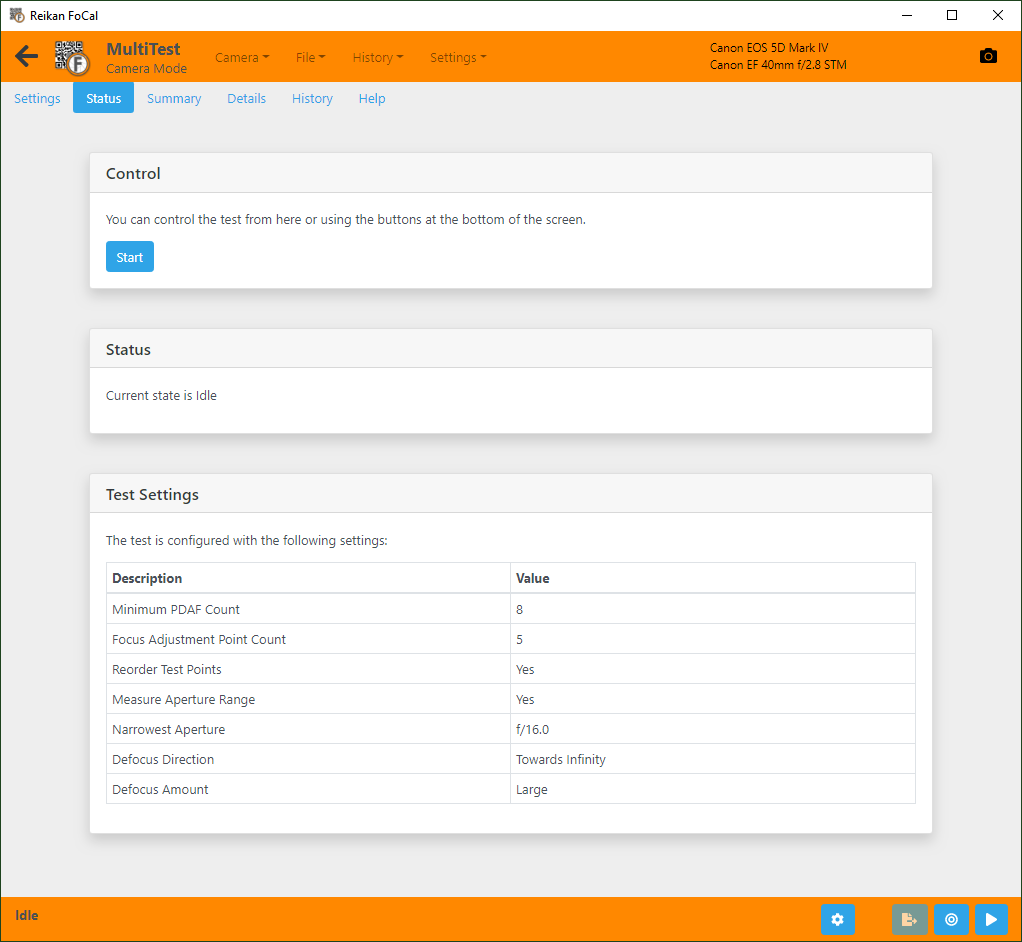
With a camera connected, choose MultiTest on the Camera page, or choose Camera › MultiTest from the menu.
Setting up
Set up the camera and target correctly before you run MultiTest. Run Target Setup first and clear any errors. See the setup guide for details.
You can open Target Setup from the Camera menu or the Camera page.
Running MultiTest
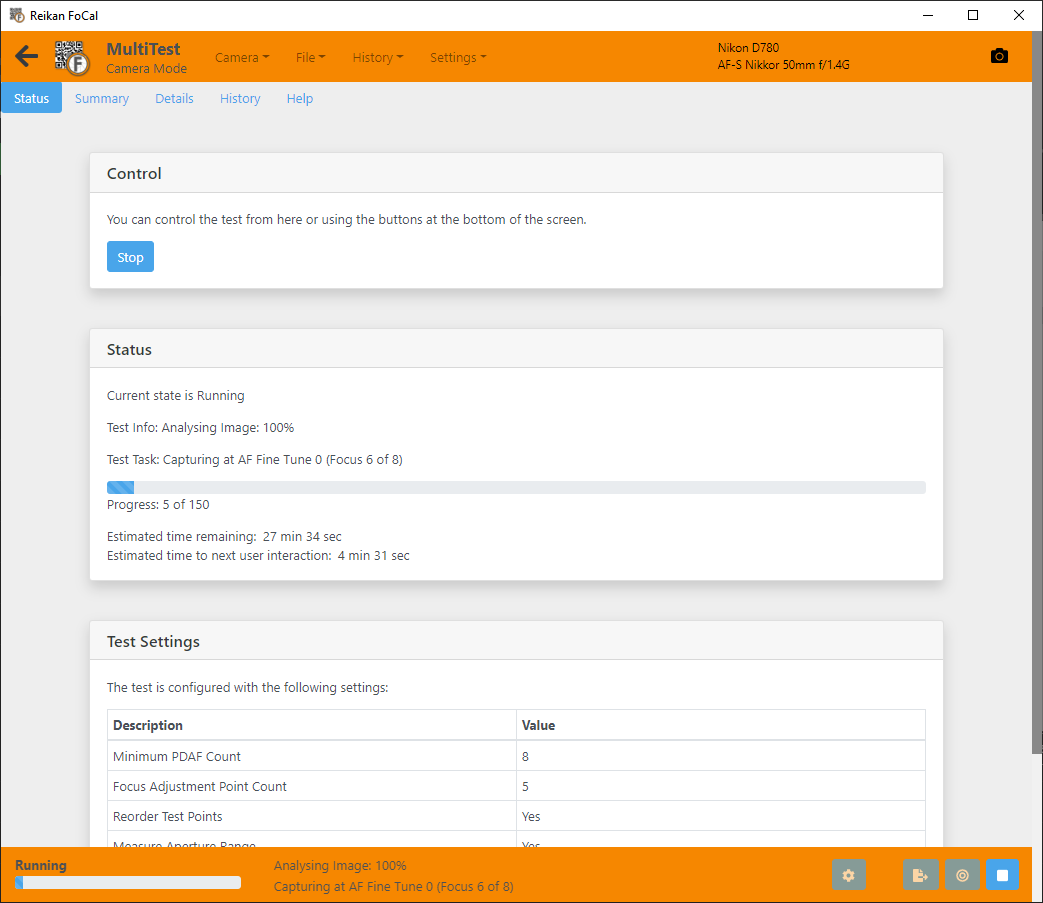
Press Start. Leave the camera and tripod alone while the test runs.
The Status tab shows how the test is progressing, with an estimate of the time remaining. On cameras that need you to change the focus adjustment by hand, it also shows the time until you next need to do something.
Hands Free Mode and User Assisted Mode cameras
Depending on whether your camera supports Hands Free Mode or User Assisted Mode, FoCal may ask you from time to time to change the AF Microadjustment / AF Fine Tune on the camera. See the camera support list and User Assisted Mode (UAM).
Live View mode doesn't use the camera's focus adjustment, so it runs completely hands-free on any camera. See MultiTest (Live View).
Reviewing the results
The Summary tab shows the main results.
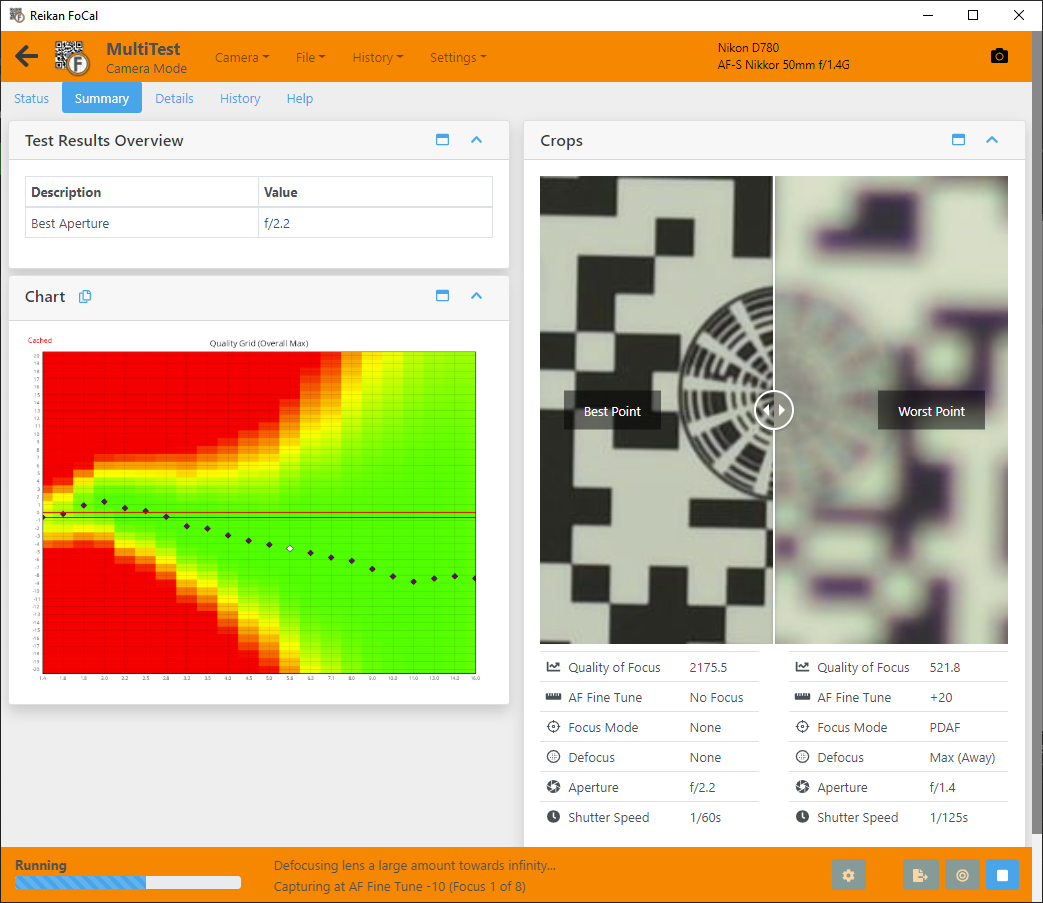
- Results: the best aperture, how much calibration improves sharpness, the absolute peak quality, and how much perfect manual focus would improve on the uncalibrated lens. See Details - MultiTest.
- Chart: the Quality Grid – MultiTest, which shows quality across the focus and aperture range. It can take 50 shots or more before it appears. Until then, the Focus & Aperture Quality – MultiTest chart is shown.
- Crops: the best and worst images side by side. Drag the bar left and right to compare them. Use the maximise button on a card to make it bigger.
- Test overview: the camera, lens and other basic information about the test.
Further Details
Settings tab
See Settings – MultiTest.
Details tab (FoCal Pro)
The Details tab has:
- Charts covering quality across focus and aperture, focus shift, aperture sharpness, autofocus error, astigmatism, colour and image movement.
- Detailed results.
- A list of every shot.
- The capture settings for the selected shot.
- Crop images, including the analysed area of the selected shot.
See Details - MultiTest for more information.
Charts
MultiTest has these charts (select one for details):
Aperture Range Quality Score (ARQS) – MultiTest
Focus & Aperture Quality – MultiTest
Aperture Sharpness Profile – MultiTest
Astigmatism Factor – MultiTest
Corner Brightness Profile – MultiTest
Some charts depend on how the test was run. ARQS and Autofocus Error need Use Camera Focus Adjustment; Focus Steps is only for Live View mode. The Focus/Aperture Surface (a 3D view of quality across focus and aperture) and Image Motion (2D) charts don't have their own help pages yet.
MultiTest doesn't have a Scores or Compare tab: there is no FoCal Comparison Data for MultiTest.
Report tab (FoCal Pro)
The Report tab saves a PDF summary of your results. You can also save a CSV file of the figures for your own analysis.
See Report Tab for more information.
History tab (FoCal Pro)
The History tab lists earlier MultiTests of the same camera and lens, with a summary of each. Double-click a test to open it, so you can see how your equipment has changed over time.
See History Tab for more information.
Help tab
The Help tab explains what the test is for, how to run it and how to read the results, with a link to this online help.