Snapshots – Snapshot Tab
The Snapshot tab (the Current Snapshot panel in earlier versions) shows the Snapshot you're working on: either one you've just captured from the camera, or one opened from the Database tab.
It has three tabs of its own: Overview, Details and Tools.
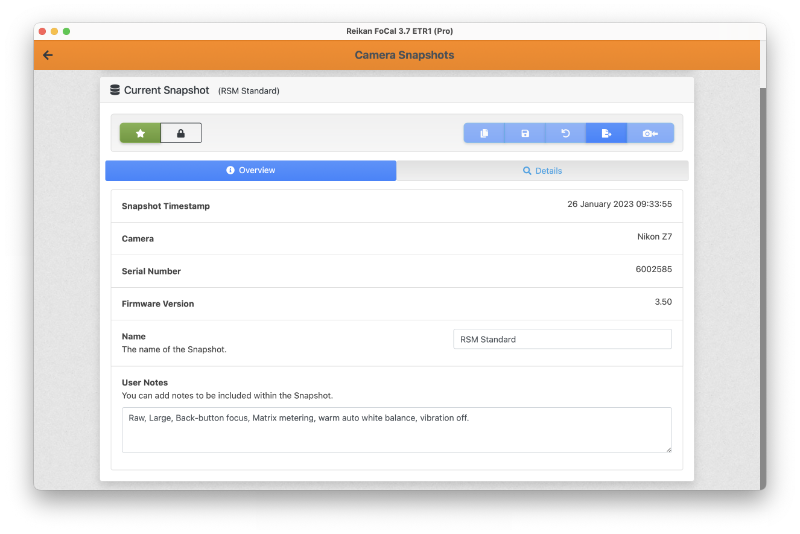
Title Bar
The title bar shows:
- The source of the Snapshot, either a camera symbol or a database symbol.
- The name of the snapshot (in parentheses), if specified.
- An alert if the loaded Snapshot has unsaved modifications (or has never been saved).
Button Bar
The button bar offers the following:
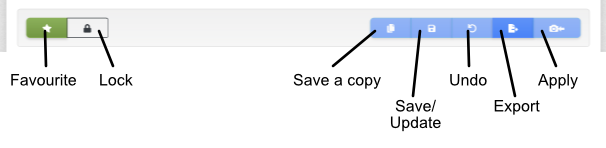
Overview Tab
The Overview tab shows information about the Snapshot.
You can edit the Name and User Notes fields with whatever information you would like.
The Name is shown in the list of Snapshots and in the title bar, so you can recognise the Snapshot.
Use User Notes to describe the settings.
If you make changes, save them: Add to Database saves a new Snapshot, and Update in Database updates the saved one.
Details Tab
The Details tab contains information about all the settings that are contained within the Snapshot.
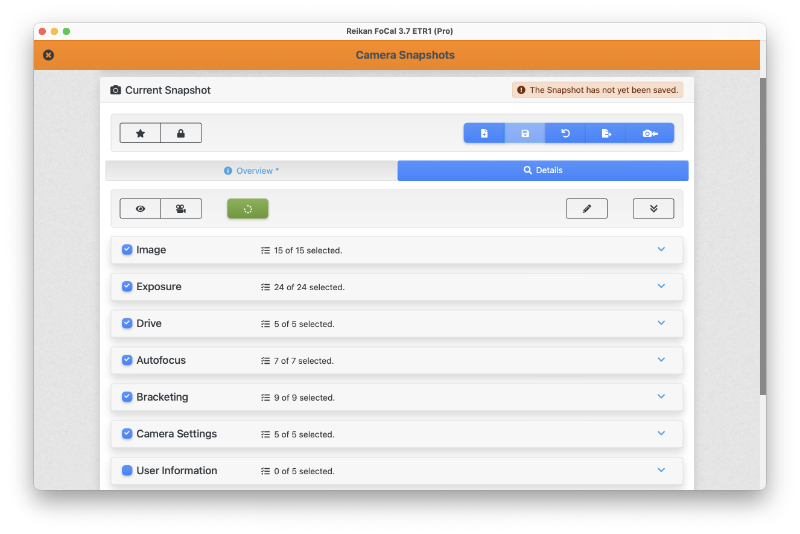
The Details tab has its own buttons:
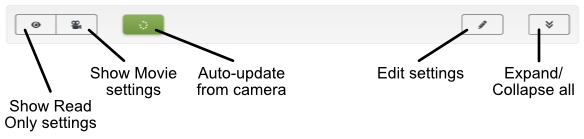
Auto Update is only available for a Snapshot you've just captured from a camera (see below).
Settings Details
Click a group (for example Image or Exposure) to see its settings:
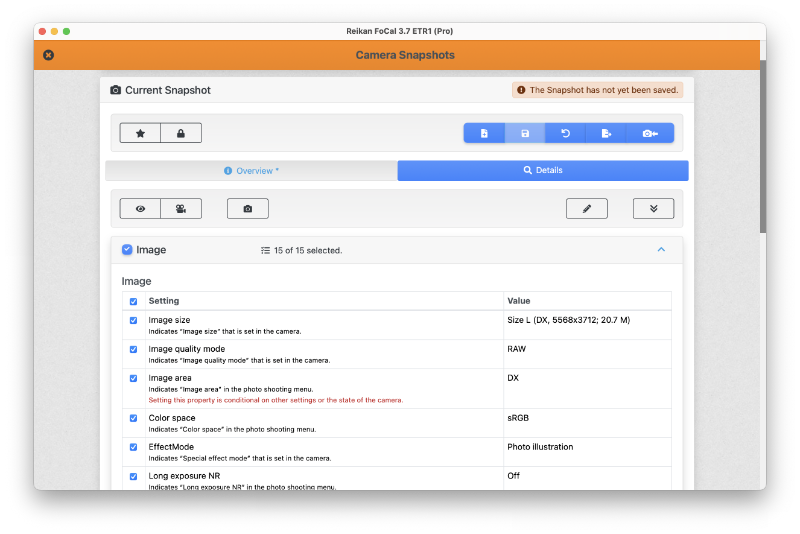
Auto Update
For a Snapshot you've just captured, you can turn on Auto Update. The icon turns green with a spinning circle while FoCal watches the camera's settings.
The camera controls are unlocked, so you can change settings on the camera and see them change in the Snapshot.
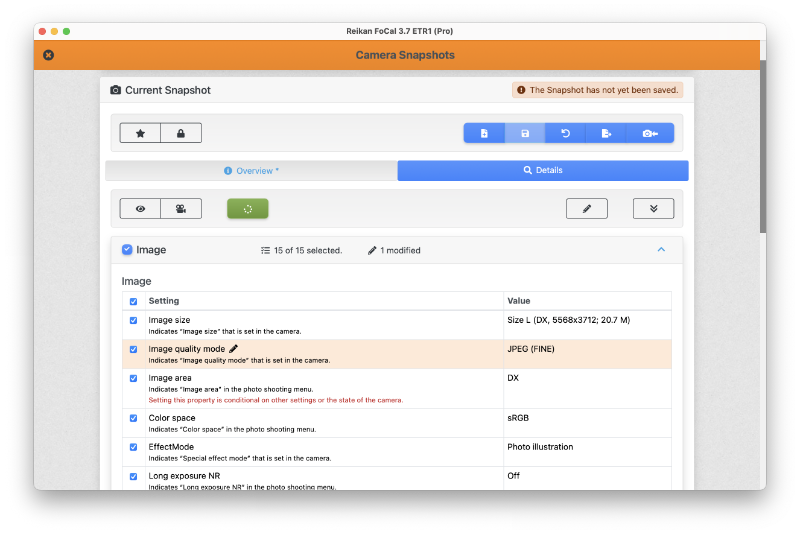
Editing
Click Edit (the pencil) to edit the settings.
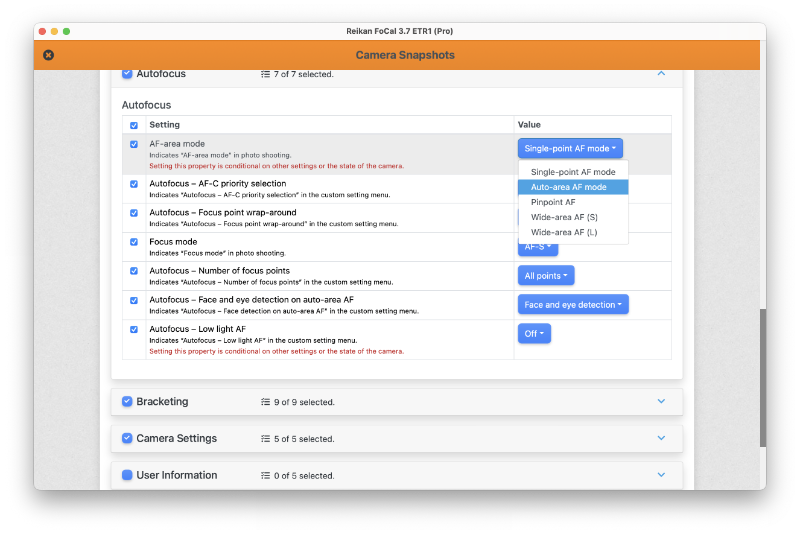
You can edit any Snapshot, with or without a camera connected. If the camera is connected and Auto Update is on, the camera changes straight away.
Save your changes, or they'll be lost when FoCal closes.
Tools Tab
The Tools tab saves the Snapshot as a PDF report. You can choose, for example, whether to show unchanged settings, the factory default values, movie settings and read-only settings.