Mac Privacy Settings
On this page
macOS asks your permission before an app can use certain protected resources. FoCal needs two of them to control your camera over USB: your photo library and removable volumes. If either is denied, FoCal can't connect to cameras.
This page explains how to grant access, and how to fix things if access was denied.
Granting Access
macOS asks for each permission the first time FoCal needs it.
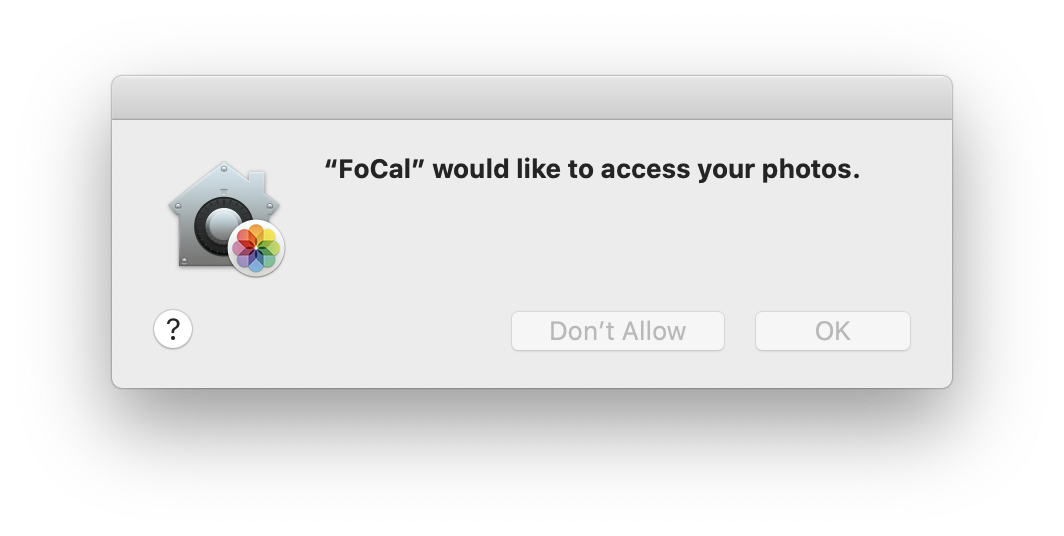
When you first start FoCal, macOS asks for access to your photo library. Click Allow All Photos.
The first time you connect a camera, macOS asks for access to files on a removable volume. Click Allow.
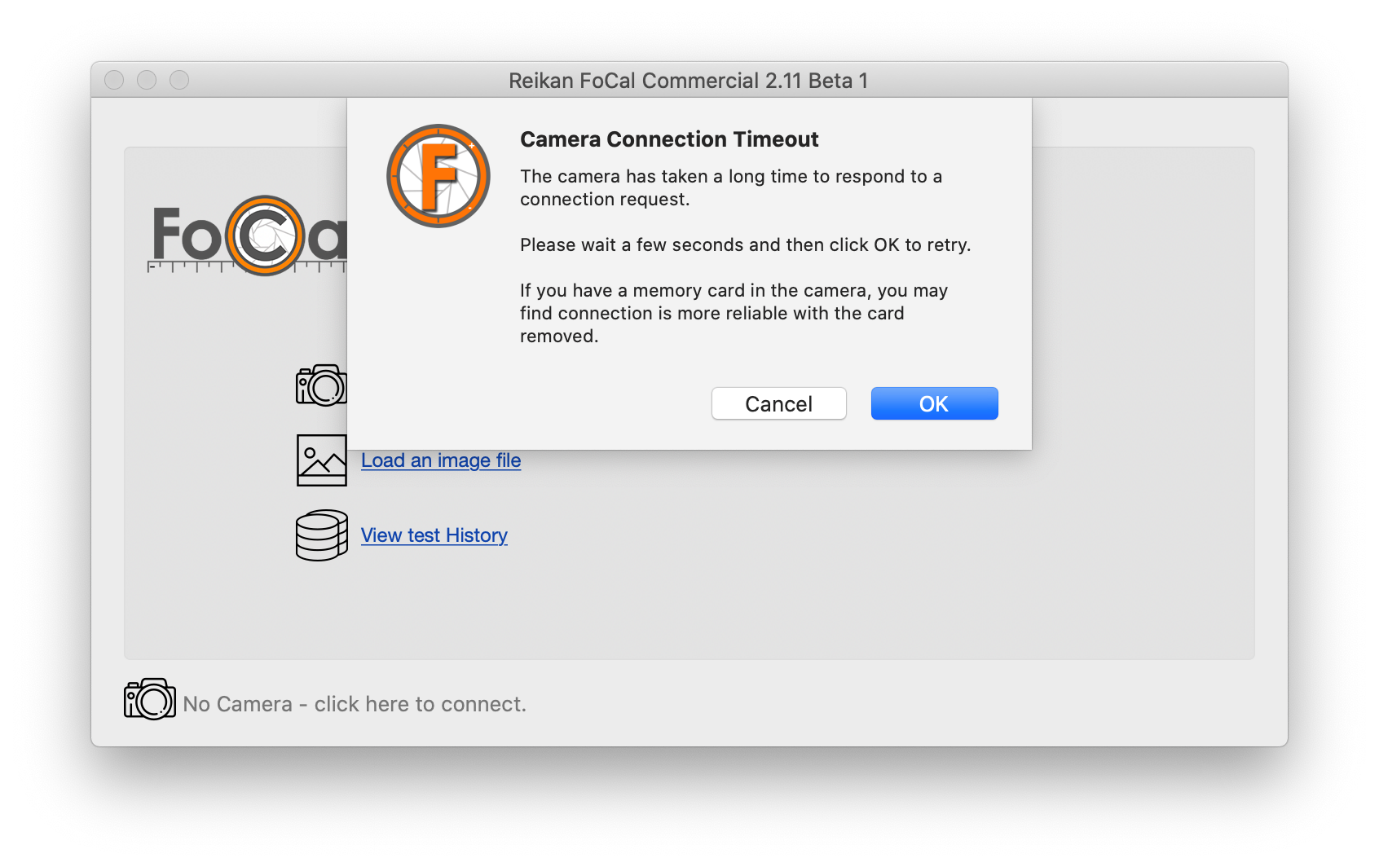
What happens if I don't allow access?
If you click Don't Allow, macOS doesn't ask again, and FoCal can't connect to cameras. When you try to connect one, FoCal tells you which permission is missing:
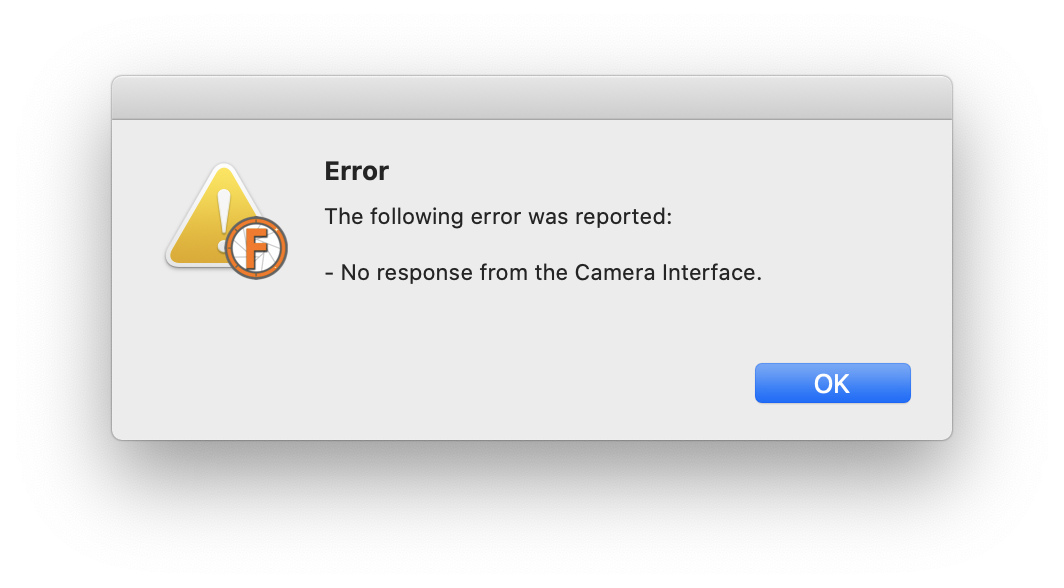
If you see this message, follow the steps below.
Check or Enable Access
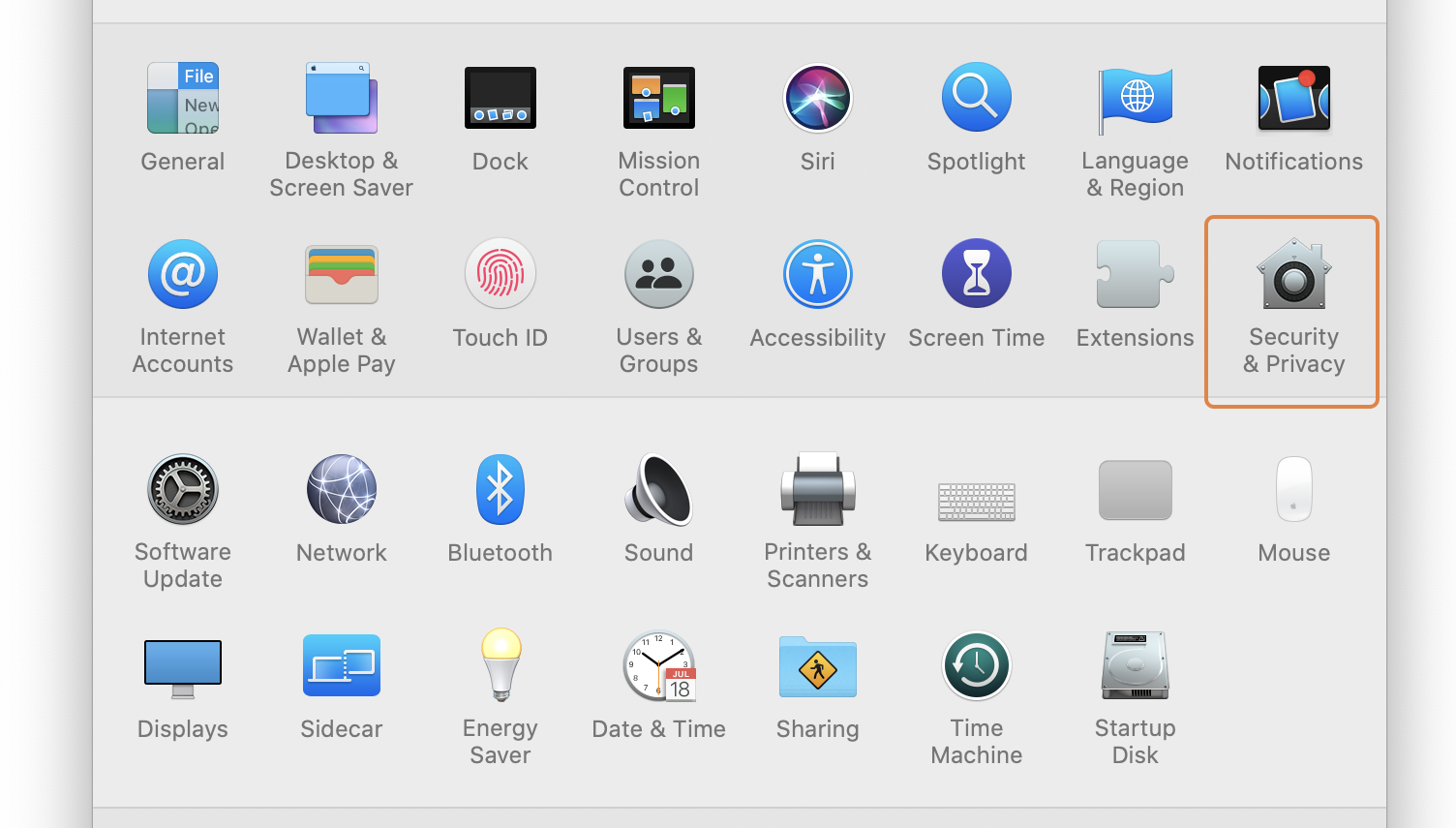
Click the Apple menu and choose System Settings, then Privacy & Security.
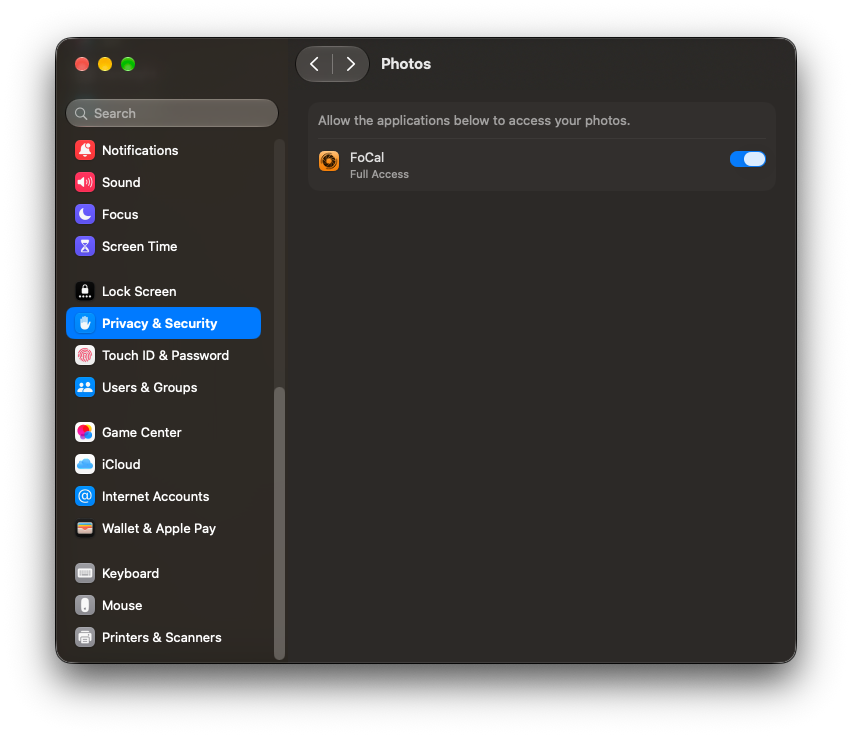
Click Photos, and turn on the switch next to FoCal. If macOS asks, choose full access.
Go back to Privacy & Security and click Files & Folders. Click the arrow next to FoCal, and turn on Removable Volumes.
When macOS asks to quit and reopen FoCal, let it. FoCal can then connect to cameras.
Reset FoCal's Permissions
If the settings above don't fix the problem, reset FoCal's permissions so that macOS asks again:
- In FoCal, go to Help › Settings, open the Advanced tab and click Reset next to Reset Application Permissions.
- Quit and restart FoCal.
- When macOS asks for access to your photo library and to removable volumes, click Allow All Photos and Allow.
For advanced users: you can do the same in Terminal with:
tccutil reset All uk.co.reikan.FoCal