History
FoCal keeps the results of every test you run on your computer, from every version of FoCal, so your history may already go back years. With FoCal Pro, the History menu lets you review, analyse and manage these results.
The History menu
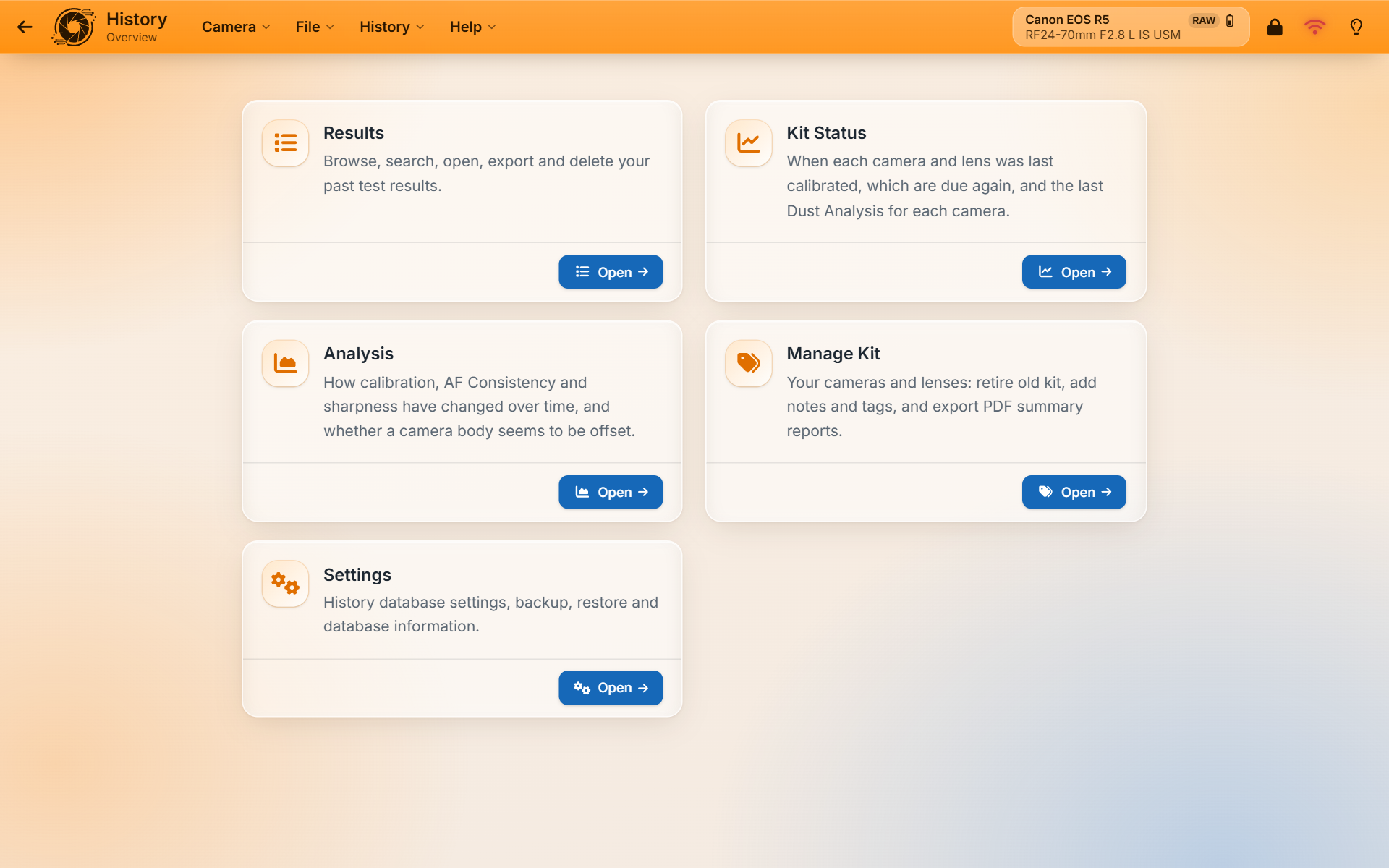
- Overview: a card for each of the pages below.
- Results: browse, search, open, export and delete your past results.
- Kit Status: when each camera and lens was last calibrated, which are due again, and the last Dust Analysis for each camera.
- Analysis: how calibration, AF consistency and sharpness have changed over time, and whether a camera body seems to be offset.
- Manage Kit: your cameras and lenses. Retire old kit, add notes and tags, and export PDF summary reports.
- Customers (FoCal Commercial): tests grouped into customer visits. See Using FoCal Commercial.
- Settings: history settings, backup and restore, and database information.
- Import from Mobile: import results exported from FoCal Mobile Pro.
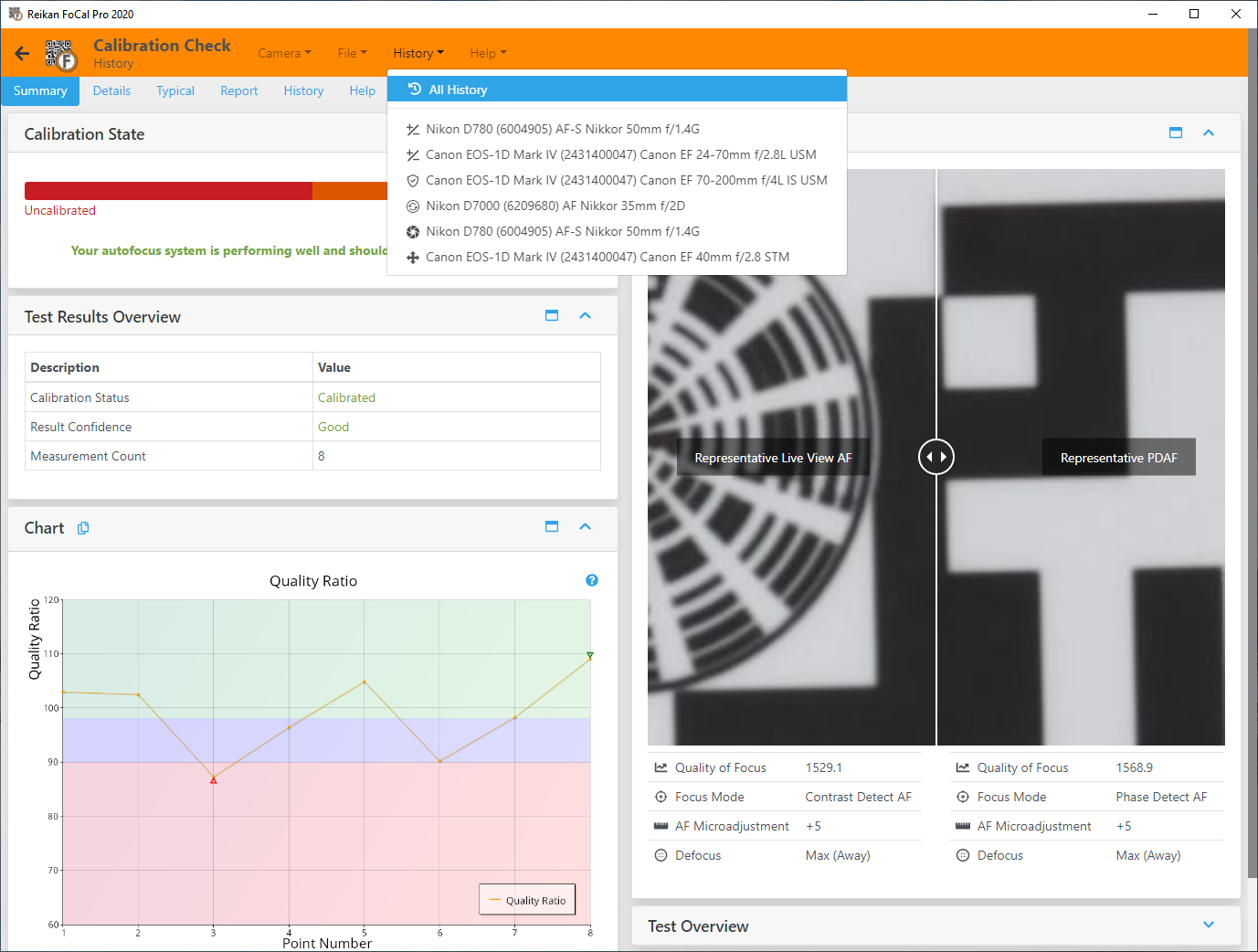
The menu also lists any results you've opened, so you can switch between them.
Results
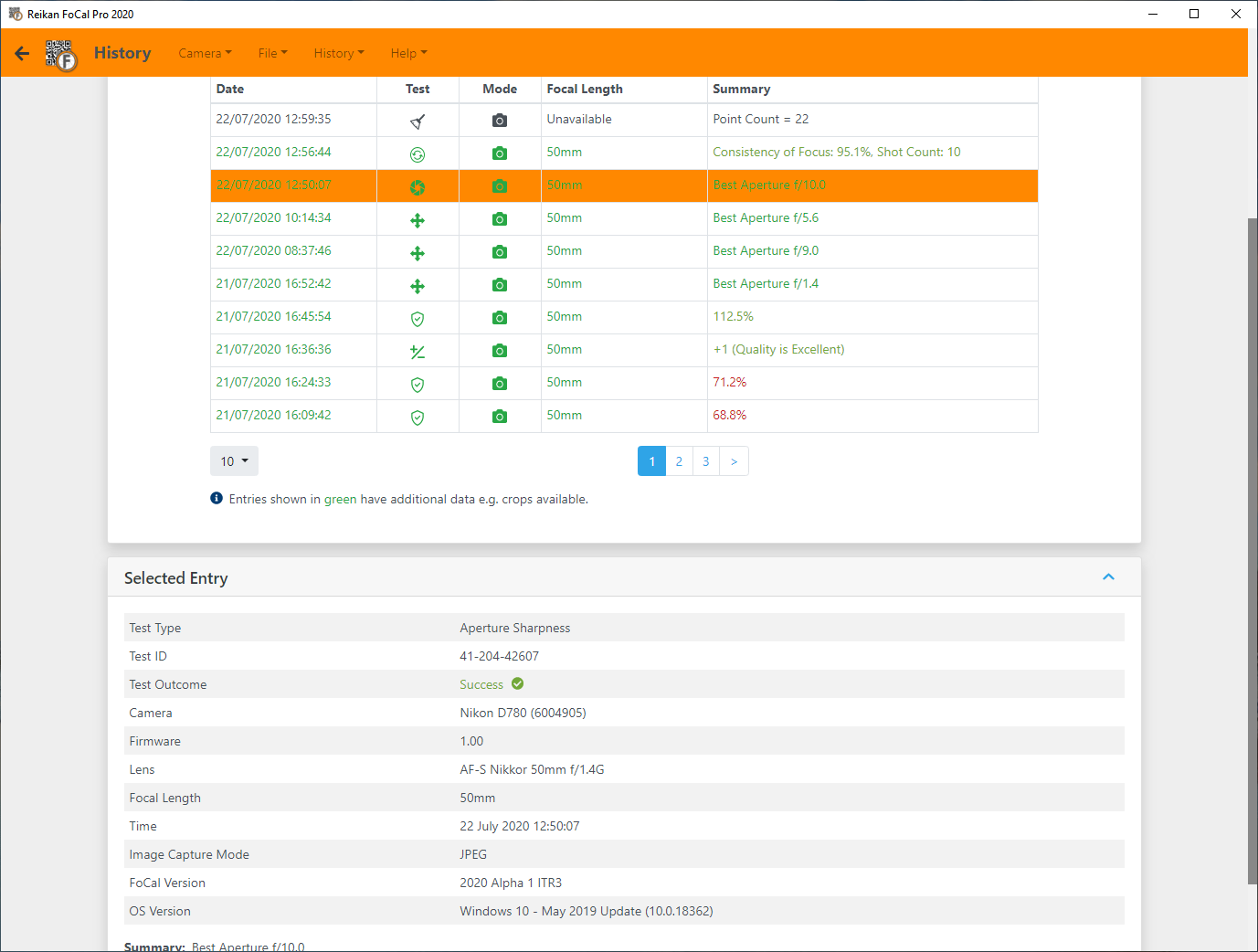
History › Results lists your results. Choose a camera and lens in the History Selection card to see their tests. To find a particular test, use Show extra search options, or enter its Test ID.
Click a result once to see more about it:
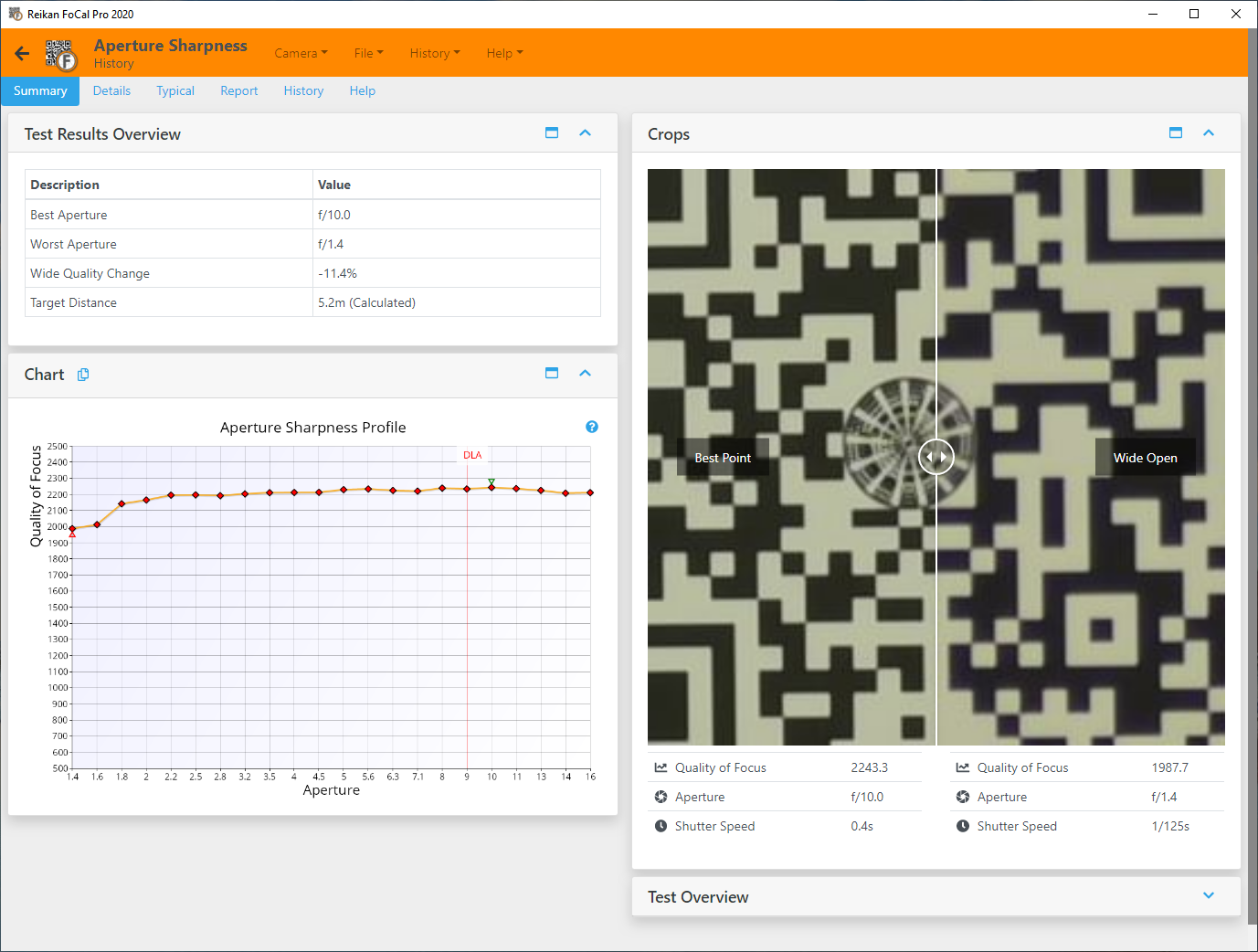
Click it twice, or click Open, to open the test and review it:
You can open several results and switch between them from the History menu:
Use Export to save the selected results to a file, and Delete to remove them.
Kit Status
History › Kit Status shows the state of all your kit at a glance: when each camera and lens was last calibrated, which are due for calibration again, and each camera's last Dust Analysis. Maintenance Watch highlights kit whose results are changing.
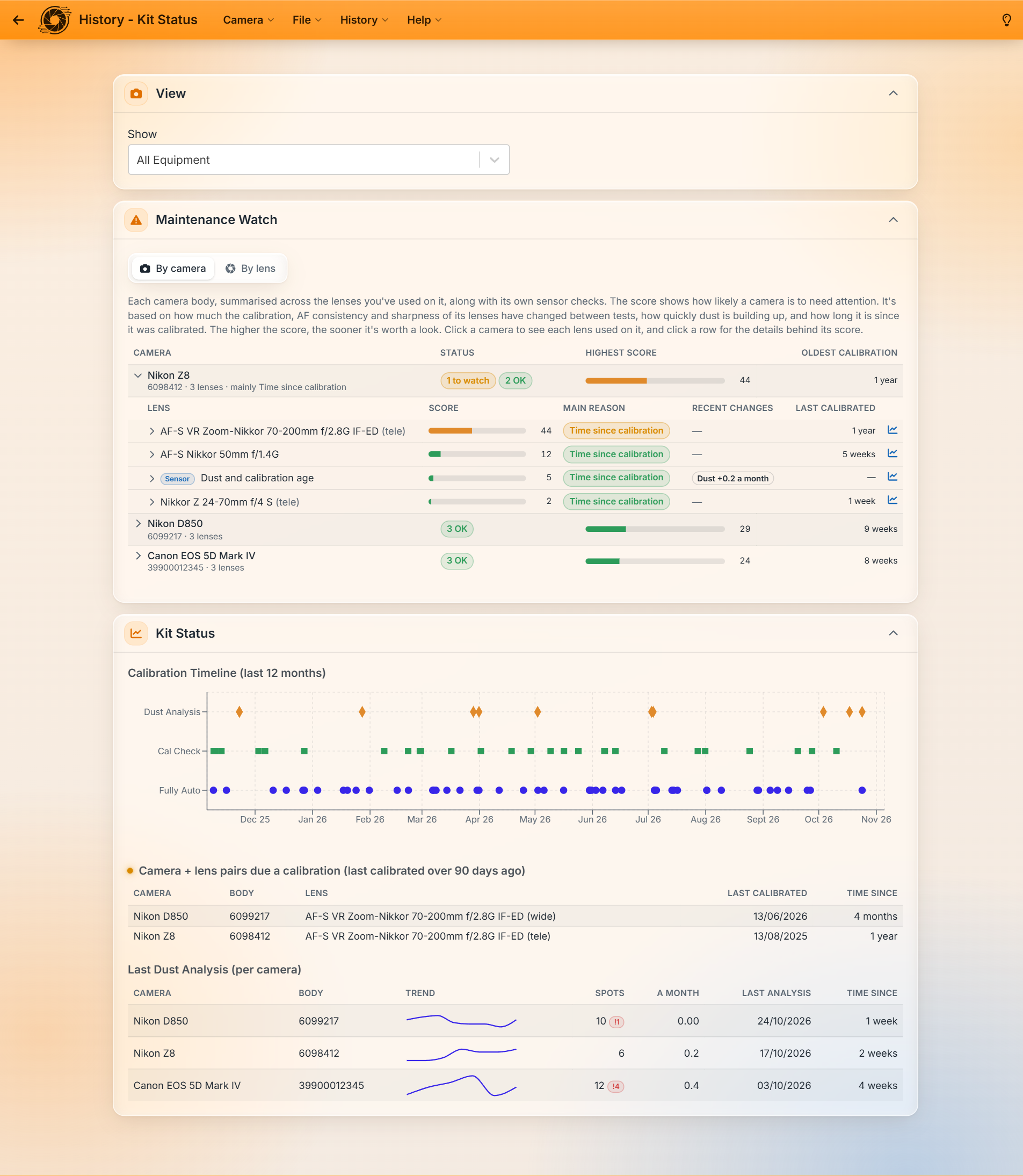
You can change when a calibration counts as due, and the Maintenance Watch thresholds, in History › Settings.
Analysis
History › Analysis shows how your results have changed over time: the best focus adjustment, AF consistency and sharpness. It also compares lenses across camera bodies, to show whether a body seems to be offset. Where FoCal Comparison Data is available for a single camera and lens, the charts show the range typical for other users (labelled Typical).
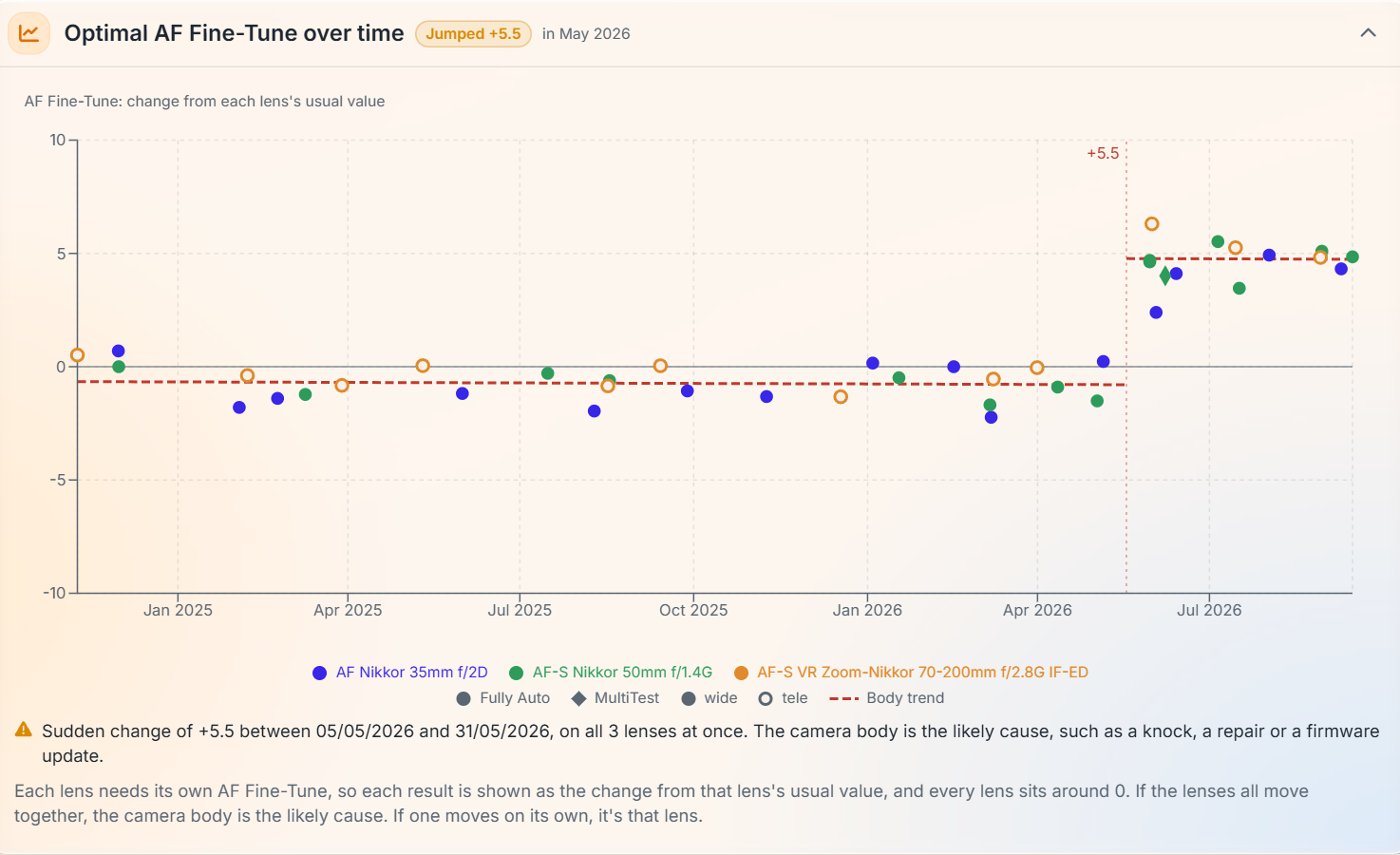
You can save a PDF summary of a camera, a lens, or a lens on one camera with Export PDF.
Backup and restore
In History › Settings, open the Backup / Restore tab:
- Backup: save your history database, to keep it safe or move it to another computer.
- Import: load a history database, or a single result file, and merge it with your current history. Nothing in your current history is lost.
Turn on Include Additional Data to include crop images and other extra data. This can make backups very large.
With FoCal Commercial, customer names are only included if you turn on Include customer names in backups (see Using FoCal Commercial).
Importing from FoCal Mobile
With a Pro subscription, FoCal Mobile can export a single test or all your results. Send the file to your computer (for example by email, AirDrop or cloud storage), then choose History › Import from Mobile and click Import.