Snapshots – Database Tab
The Database tab (called Snapshots in earlier versions) lists the Snapshots saved on your computer.
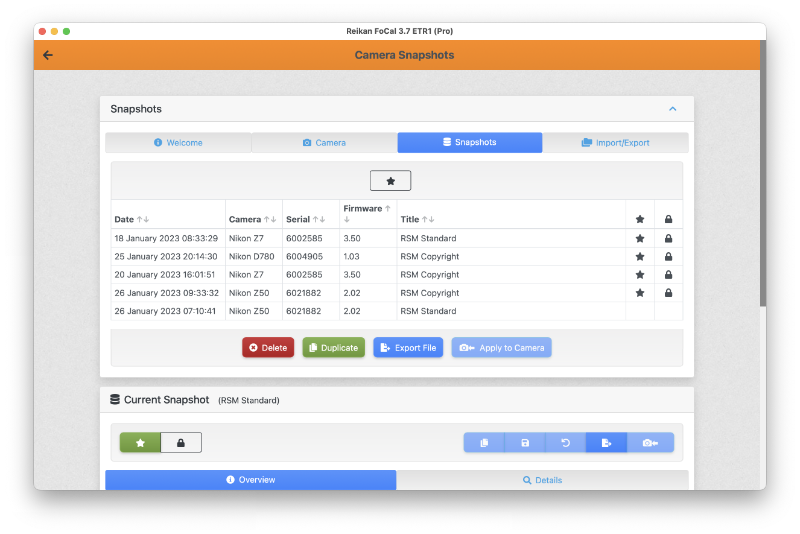
With a camera connected, the toolbar has a camera filter. When it's on (filled green), only Snapshots that suit the connected camera are shown. You can also choose Only show Favourites.
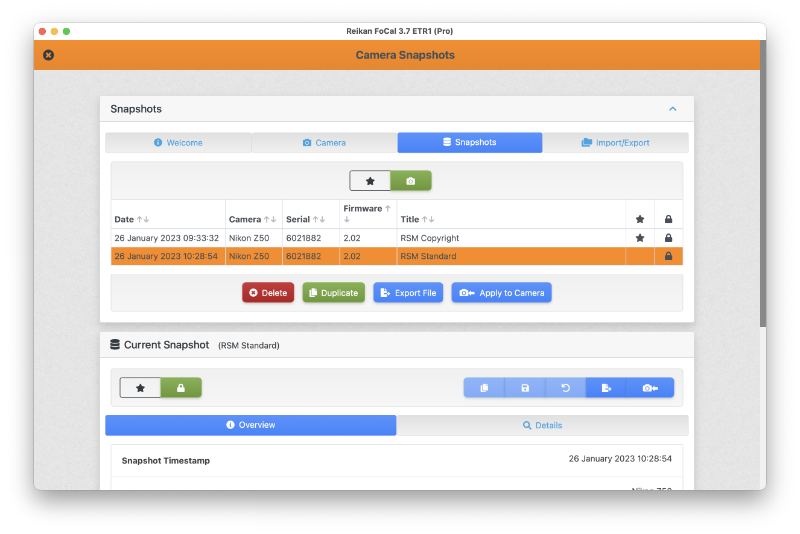
Opening a Snapshot
Click a Snapshot in the list to open it:
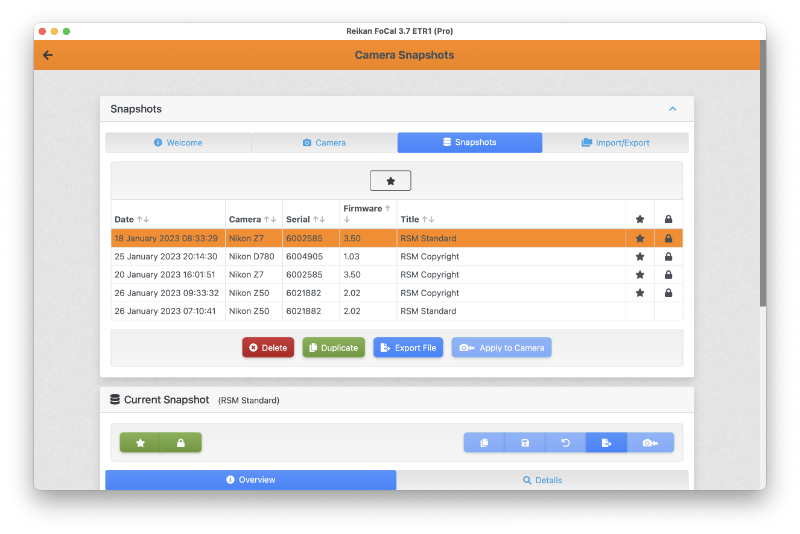
It opens on the Snapshot tab (see Snapshots – Snapshot Tab).
Snapshot Actions
With a Snapshot selected, the buttons under the list let you:
- Delete: remove it from your Snapshot database.
- Duplicate: make an exact copy, dated now.
- Export File: save the Snapshot to a file, to keep or to share so others can set up their camera the same way.
- Apply to Camera: set your camera up from the Snapshot. This needs a camera connected and opened.
Favourites
You can mark specific Snapshots as favourites, allowing you to easily find them in the Snapshot list.
Open the Snapshot, then click Set as Favourite (the star) on the Snapshot tab. The star is filled, and shown in the list.
Locked Snapshots
You can lock Snapshots to ensure you don’t accidentally delete them from your database.
Open the Snapshot, then click Lock Snapshot on the Snapshot tab. The lock is filled, and shown in the list.