AF Consistency
On this page
The AF Consistency test shows how repeatably your camera and lens focus. FoCal defocuses the lens, lets the camera autofocus, and measures the sharpness of the shot. It repeats this for each point in the test. The closer the results are to each other, the more reliable your autofocus.
A perfectly calibrated lens still gives soft pictures if the autofocus lands in a slightly different place each time, so this test complements calibration.
The AF Consistency test needs FoCal Pro.
Before you start: calibrate
The test uses the camera's current AF Microadjustment / AF Fine Tune. If the lens isn't calibrated and you test phase-detect (viewfinder) autofocus, the shots will be less sharp and the results will look worse than they should, especially against the FoCal Comparison Data.
If you are unsure whether the lens is calibrated, check it with Calibration Check or run a Focus Calibration first.
Opening the AF Consistency test
With a camera connected, choose AF Consistency on the Camera page, or choose Camera › AF Consistency from the menu.
To analyse shots you have taken yourself, use File › AF Consistency (File Mode).
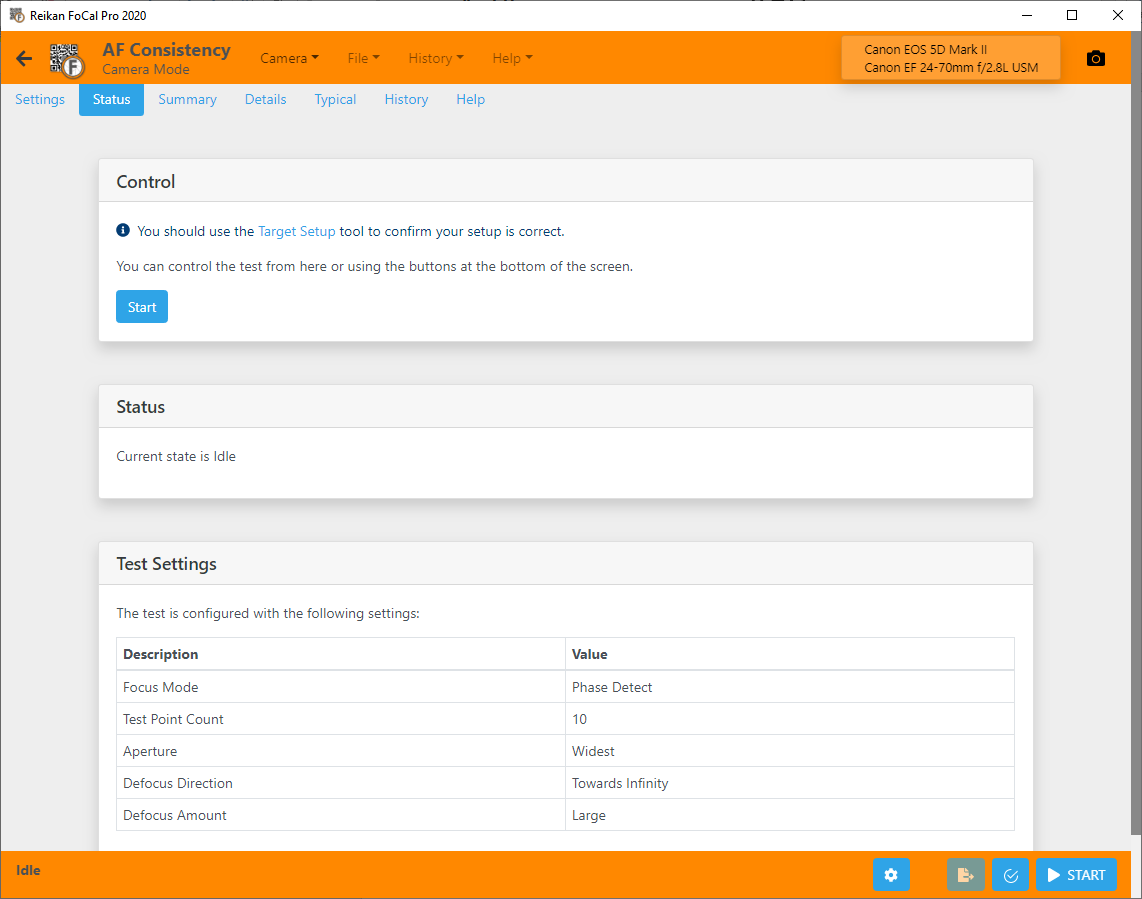
Set up the camera and target correctly before you run the test. Run Target Setup first and clear any errors, otherwise the results may not be accurate. See the setup guide for details.
Settings
The Settings tab shows the settings for this test. The defaults suit most uses. See Settings – AF Consistency.
Running the test
When Target Setup is happy, press Start.
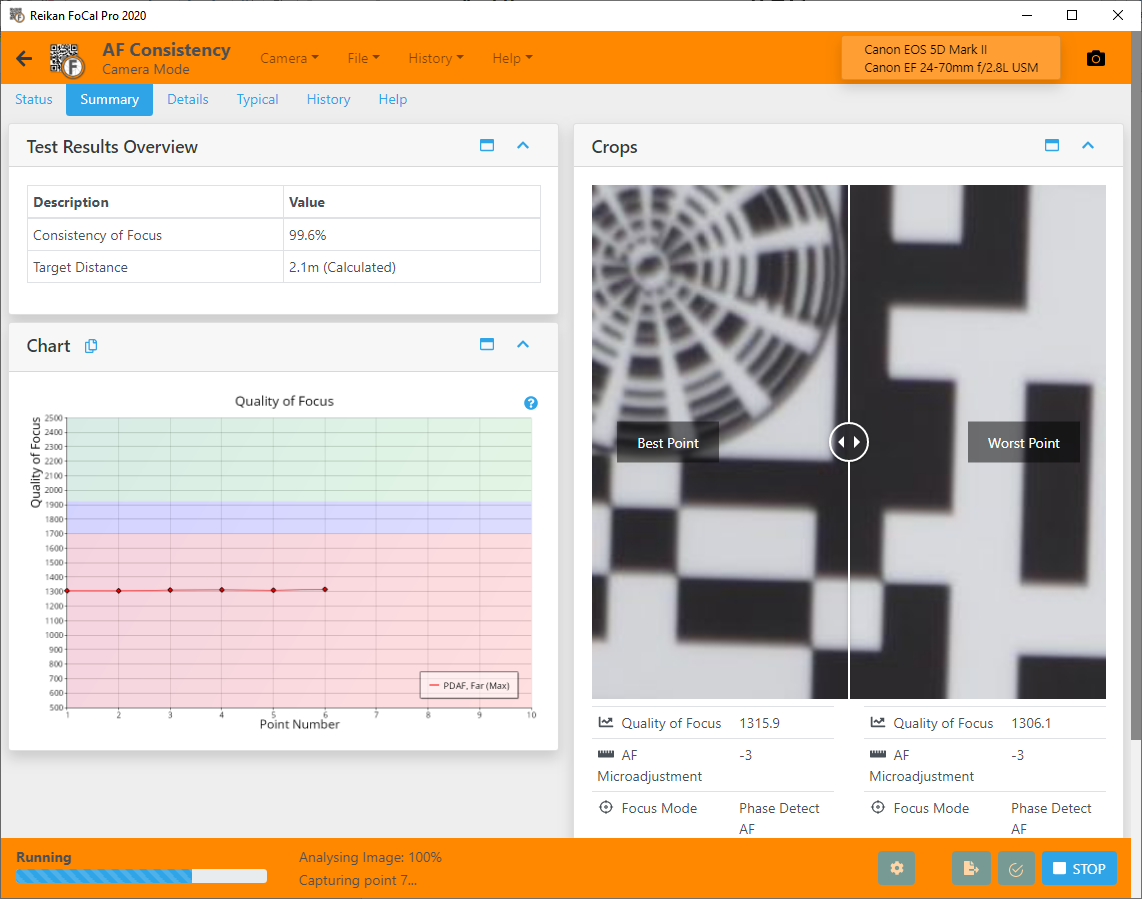
For each point, FoCal defocuses the lens (as set by Defocus Amount and Defocus Direction), then the camera focuses using the Autofocus Mode you chose. FoCal takes the shot and measures it. The charts update as the test runs, with FoCal Comparison Data bands where available.
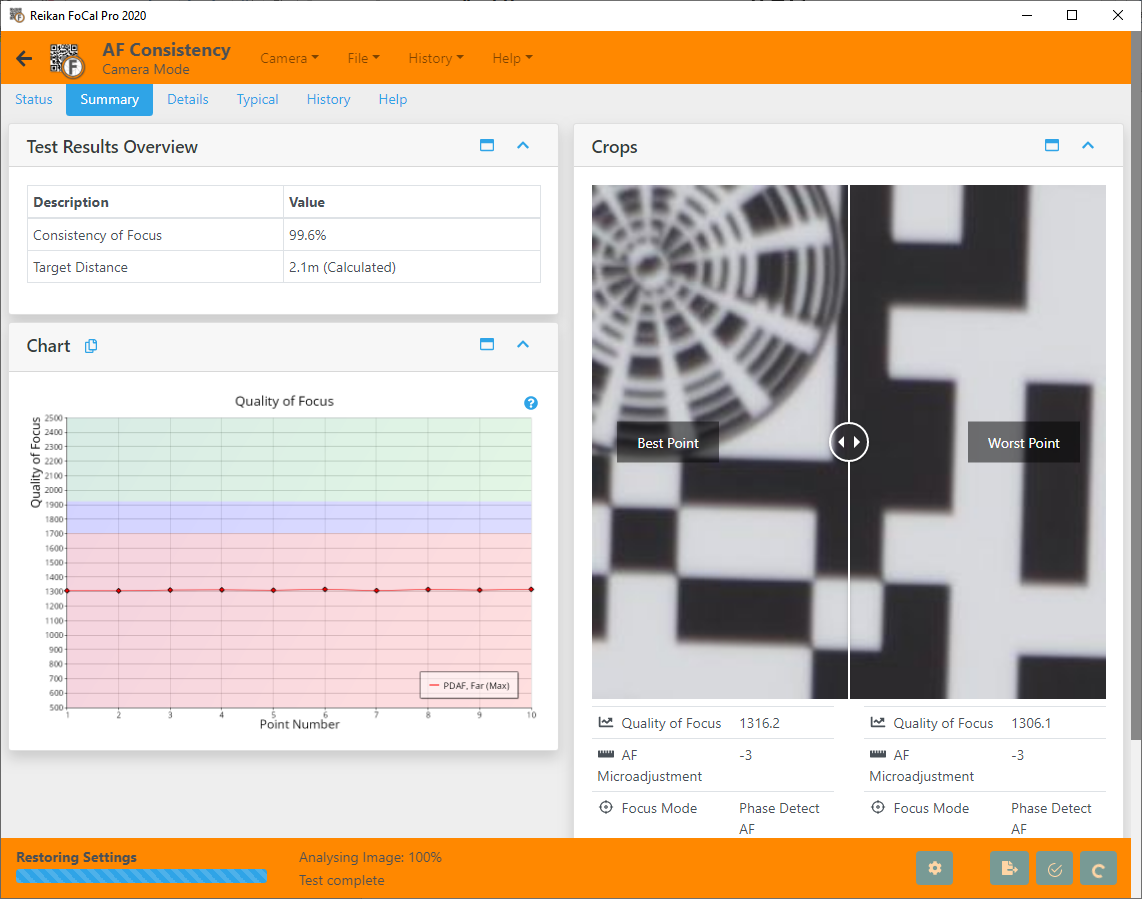
Leave the camera and tripod alone while the test runs. You can look at the charts and crop images during the test, but the results aren't final until it finishes.
More than one autofocus type or defocus direction
You can test each point with both phase-detect and live view autofocus (if the camera supports both), and with defocus both towards infinity and towards the camera. Each combination becomes its own data set, with its own colour on the charts and its own figures in the results. See Settings – AF Consistency.
Further Details
Summary tab
The Summary tab shows the main result (Consistency of Focus), the target distance and the Results Progression – AF Consistency chart.
Details tab (FoCal Pro)
The Details tab has:
- Charts covering sharpness, consistency, astigmatism, colour and image movement.
- Detailed results.
- A list of every shot.
- The capture settings for the selected shot.
- Crop images, including the analysed area of the selected shot.
See Details – AF Consistency for more information.
Charts
The AF Consistency test has these charts (select one for details):
Quality of Focus – AF Consistency
Results Progression – AF Consistency
Astigmatism Factor – AF Consistency
Red-Blue Ratio – AF Consistency
Red-Blue Quality – AF Consistency
Dual Pixel Raw Focus Offset – AF Consistency
The AF/Capture Time and Image Motion (2D) charts don't have their own help pages yet. AF/Capture Time shows how long the camera took to focus and take each shot. Image Motion (2D) shows the path the image took across the sensor during the test.
Scores tab (FoCal Pro)
The Scores tab rates three parts of the result: consistency of focus, image motion and astigmatism.
Compare tab (FoCal Pro)
The Compare tab shows how your results compare with other FoCal users of the same camera and lens (FoCal Comparison Data). It replaces the Typical tab from earlier versions.
See Compare Tab for more information.
Report tab (FoCal Pro)
The Report tab saves a PDF summary of your results. You can also save a CSV file of the figures for your own analysis.
See Report Tab for more information.
History tab (FoCal Pro)
The History tab lists earlier tests of the same camera and lens, with a summary of each. Double-click a test to open it, so you can see how your equipment has changed over time.
See History Tab for more information.
Help tab
The Help tab explains what the test is for, how to run it and how to read the results, with a link to this online help.