Camera Tools: Time Sync
The Time Sync tool sets your camera's clock to your computer's time.
For cameras that support it, FoCal also sets the time zone and daylight saving time. For other cameras, FoCal guides you through checking those settings on the camera.
Opening Time Sync
- Connect your camera.
- Choose Camera › Camera Tools.
The tool isn't available while a test is running.
The Camera Time card shows the camera's clock, with as much detail as the camera reports, and your computer's time (System Time). It also shows how far ahead or behind the camera clock is.
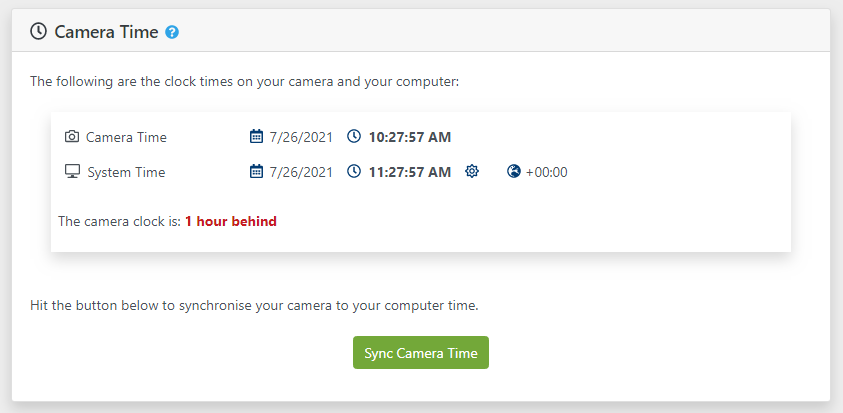
Cameras that report only local time are shown as above.
For cameras that support world time, the Camera Time is shown in the same way as the System Time: a sun symbol shows whether daylight saving time is applied, and a globe symbol shows the time zone (+00:00 above).
Synchronising the time
Click Sync Camera Time. What happens next depends on the camera:
- Cameras that support setting world time (for example, Canon cameras from around 2012 onwards): FoCal sets the time, time zone and daylight saving time.
- Cameras without world time (for example, Canon cameras from before around 2012): FoCal sets the camera to your computer's local time, the time you'd see on a wall clock.
- Cameras that use world time internally but don't let FoCal read or set it (all Nikon cameras): FoCal shows the message below.
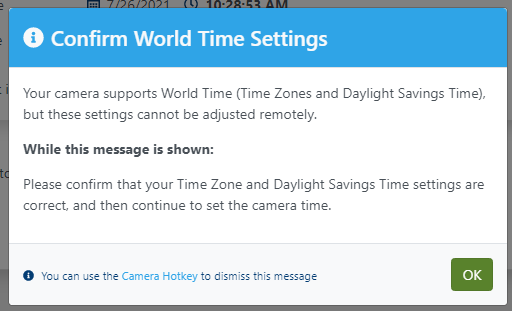
While the message is shown, you can use the camera's menus. Go to SETUP MENU › Time zone and date and check the time zone and daylight saving time options. Then close the message (or use the camera hotkey), and FoCal sets the camera to your computer's local time.
After synchronising
For all cameras, FoCal then shows a message. While it's shown, you can use the camera's menus to check the time is set correctly.