Advanced Settings
On this page
The Advanced tab of Help › Settings. Most of these settings are for troubleshooting. Only change them if you know you need to, or if Reikan support asks you to.
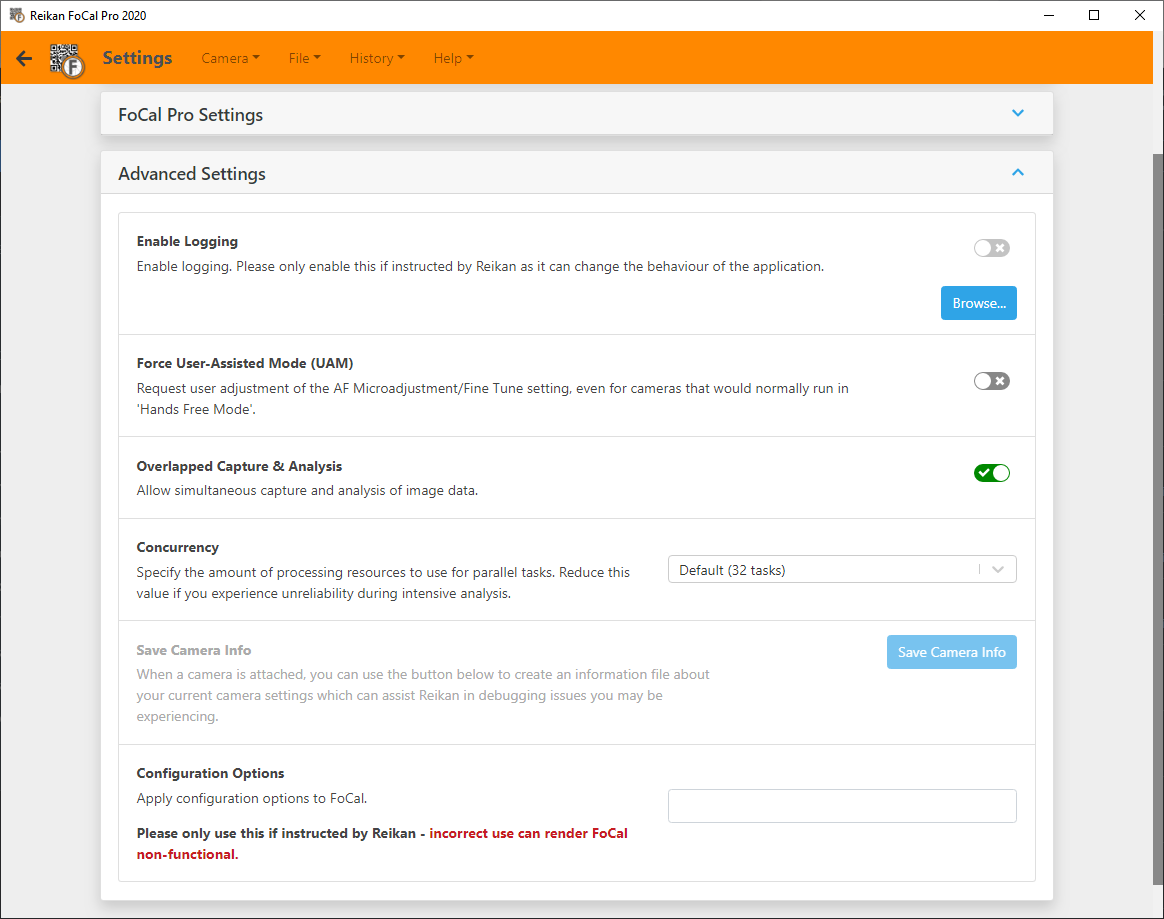
Enable Logging
Creates a debug log while FoCal runs, which helps Reikan support diagnose problems. You can choose where the log is saved.
Please don't turn this on unless we ask you to. Logging can change how FoCal behaves.
Force User-Assisted Mode (UAM)
Some cameras can only run in User Assisted Mode, where FoCal asks you to change the settings it can't control (see User Assisted Mode (UAM)).
Turn this on to run every camera in User Assisted Mode, including Hands Free Mode cameras. This is occasionally useful for diagnosing problems.
Overlapped Capture & Analysis
When this is on (the default), FoCal analyses images while the camera captures the next ones. This makes tests faster, especially with Raw, but uses more of your computer's resources.
If you have problems with running out of memory, or other computer problems during testing, try turning it off.
Concurrency
FoCal uses several processor cores at once to speed up analysis. In rare cases, usually on computers with little memory, this can cause problems.
Concurrency sets how many tasks FoCal runs at the same time. Normally leave it at the default (based on the number of processor cores). If FoCal is unstable during analysis, reduce it. "1 task" runs everything one step at a time.
Save Camera Info
With a camera connected, click Save Camera Info to save a file describing your camera's settings. Reikan support may ask you for one to help investigate a problem.
Clear Comparison Data Cache
FoCal keeps a copy of the FoCal Comparison Data it downloads. Click Clear Cache to delete it, so FoCal downloads fresh data next time. The current size of the cache is shown.
Remove All Settings
Deletes all FoCal's stored settings, including your licence details. FoCal then restarts, and you'll need to log in again. To reset your settings but keep your licence, use Restore Defaults on the General tab instead (General Settings).
Reset Application Permissions (Mac only)
Removes the macOS permissions you've given FoCal, so macOS asks for them again next time FoCal starts. See Mac Privacy Settings.
Configuration Options
For testing and debugging only. Only use this if Reikan asks you to.
Incorrect use can cause loss of data, make tests fail, or stop FoCal starting at all.