Report Tab
On this page
The Report tab saves a PDF report of the test. It's available with FoCal Pro once the test has finished, and when you open a test from History.
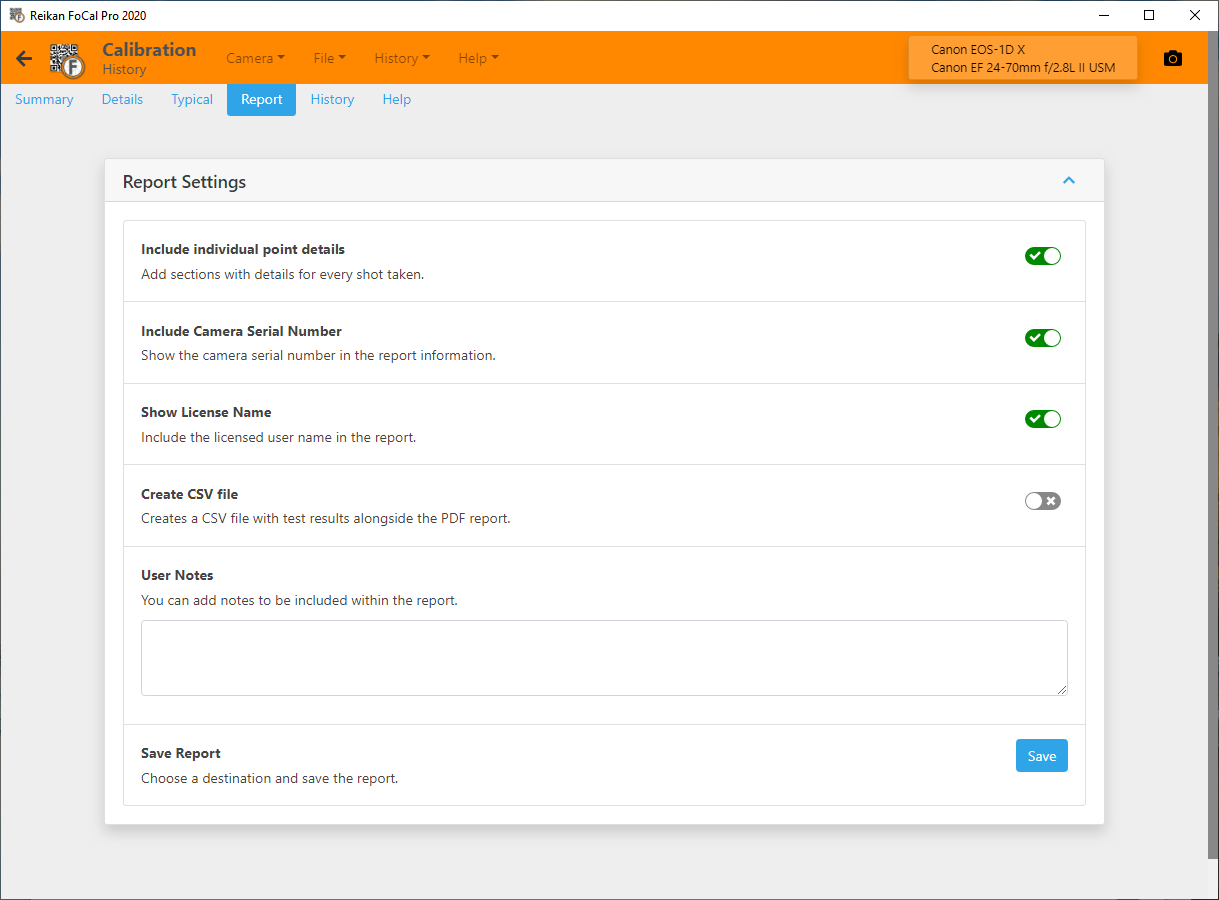
Saving a report
- Choose the options in Report Settings (below).
- Optionally, type notes in User Notes. They appear in the User Notes section of the report.
- Click Save, then choose where to save the report.
Report settings
- Include individual point details: add a section for every shot taken.
- Include Camera/Lens Serial Number: show the serial numbers in the report.
- Show License Name: include the licensed user's name.
- Create CSV file: save a CSV file of the results next to the PDF, for your own analysis.
- Auto Show Report: open the PDF after saving it.
With FoCal Commercial, you can put your own logo on reports in Settings › Commercial (see Using FoCal Commercial).
Exporting a test
Export Test Data saves all the test results and crops to a file that you can import into another copy of FoCal. Click Export and choose where to save it.