FoCal User Interface Overview
On this page
Here's an overview of the main parts of FoCal's user interface.
The Home Page
When FoCal first starts, you’ll be shown the Home page:
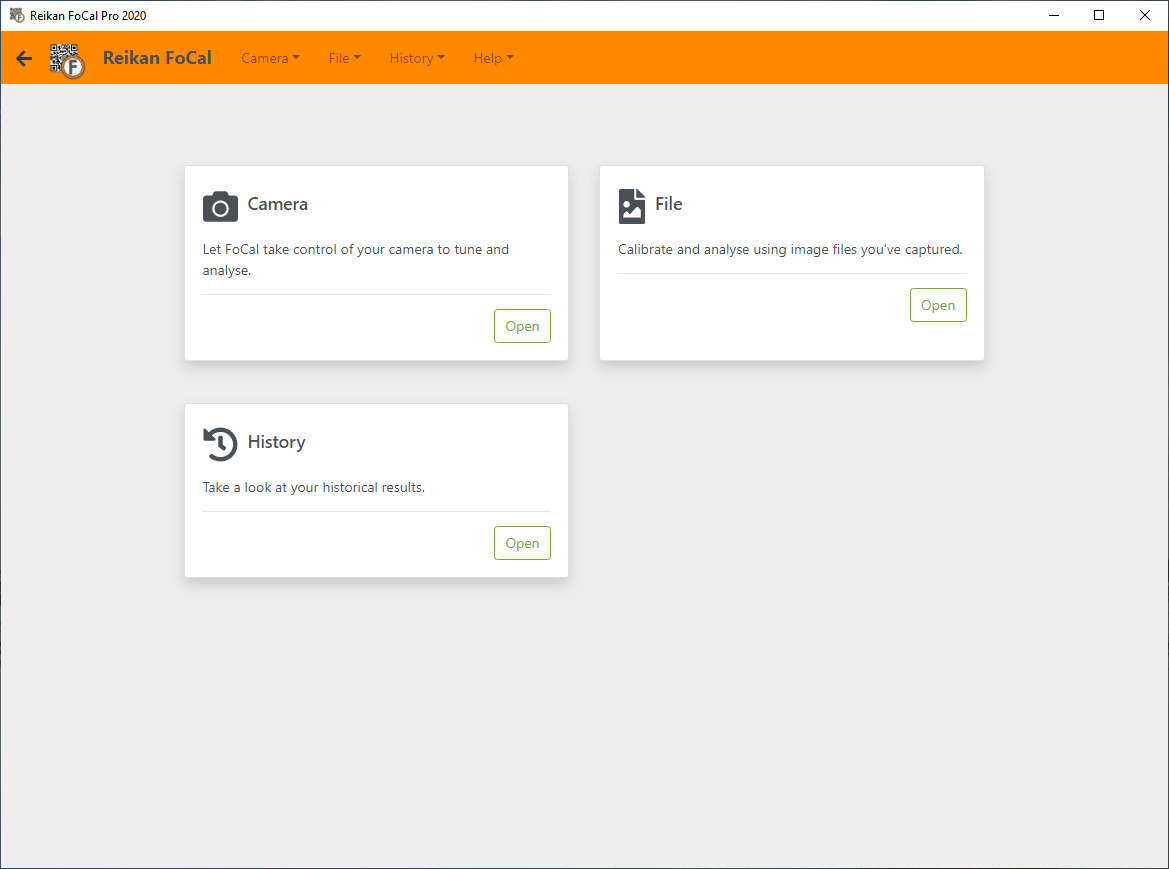
The Nav Bar
The orange bar at the top of every page is how you get around FoCal.

- The arrow on the far left works like a browser's back button: it returns you to the last page you were on.
- The FoCal icon takes you to the Home page.
- The page title shows which page you're on and, for test pages, the mode (for example Camera, File Mode or History).
- The Camera, File, History and Help menus work like standard menus: click to open, then choose an option.
When a camera is connected, the camera and lens are shown at the top right:

Click the camera and lens to go to the Camera page (see below).
While FoCal is taking a shot that counts towards the results, a red warning icon is shown, so you know not to block the lens:

The Camera Page
The Camera page shows the main building blocks of the interface:
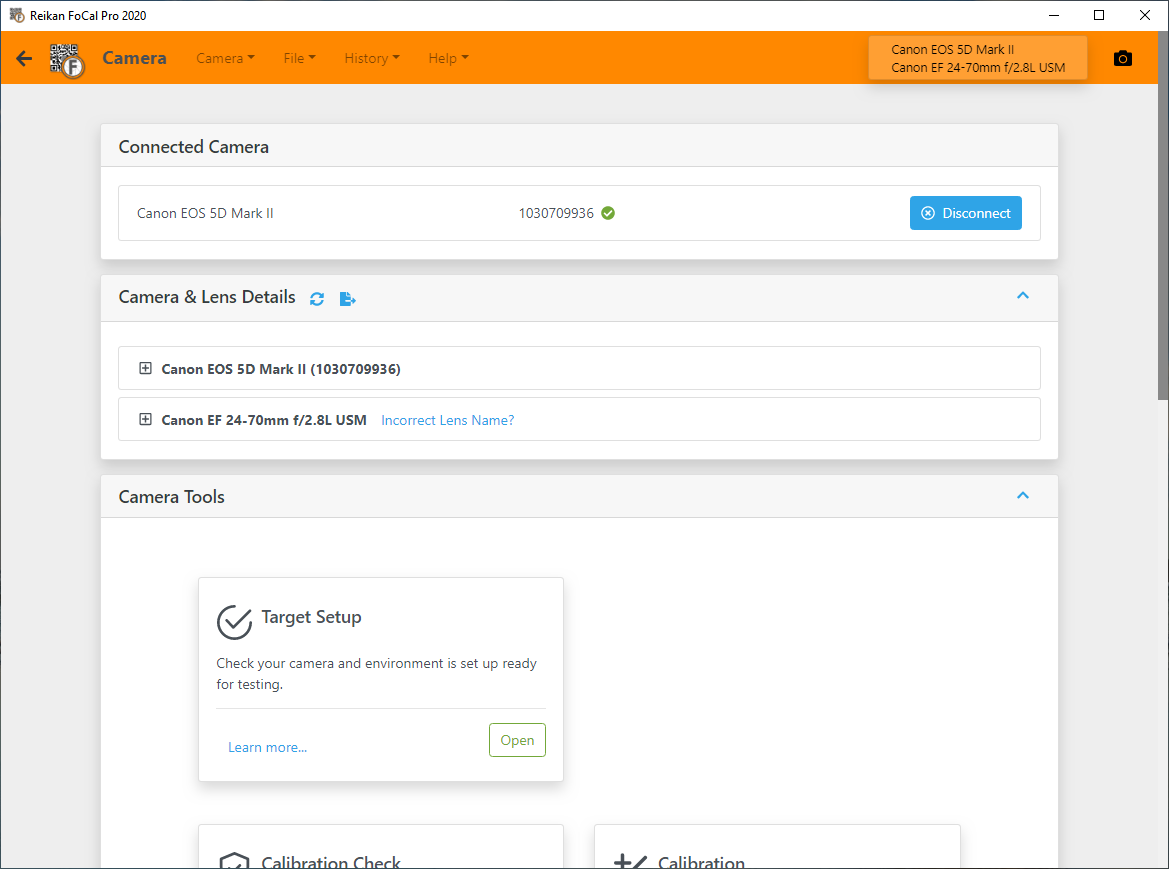
Pages are made up of cards. They're used throughout FoCal and have some common features:

The arrow on the right of some cards collapses or expands the card.
The card above has a Refresh button and a button for saving a report. Action buttons like these appear in the card's title bar.
At the bottom of the Camera page is a card for each test and tool:
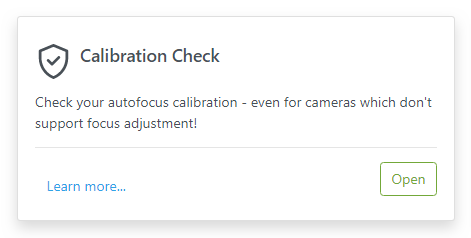
Each card opens a test, a tool or another feature.
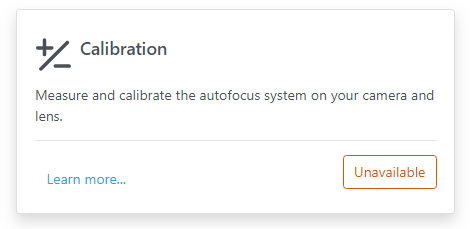
Learn more... tells you about it, and Open opens it. If the button says Unavailable, click it to see why:
Test Pages
Apart from Target Setup, every test page has the same layout.
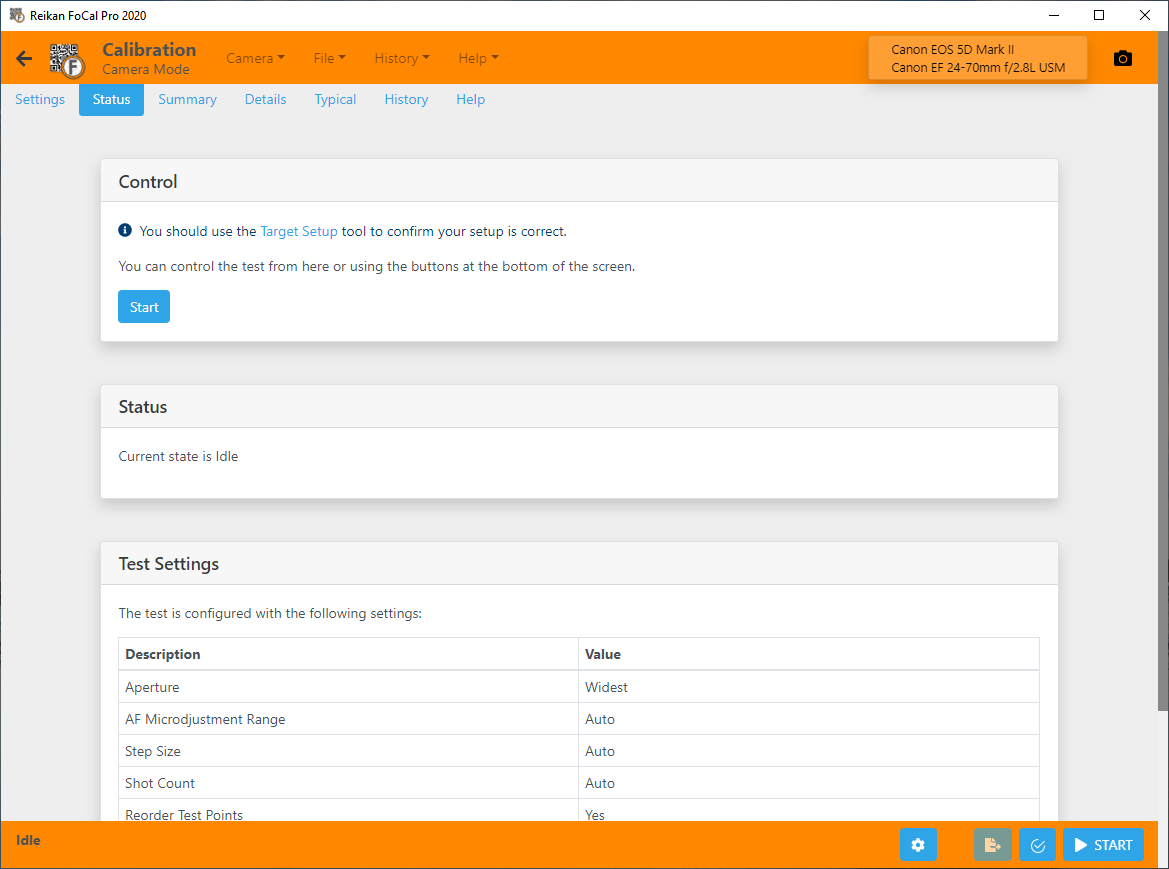
The tabs at the top of the page (see Test Page Tabs) include:
- Settings: the settings for the test
- Status: the state of the test and the settings it uses, with Start and Stop
- Summary: basic summary information about the test results
- Details: the complete results details for the test including multiple charts, lists of shots with capture information, crops etc.
- Scores: the results as scores from 0 to 100
- Compare: how your results compare with other users of the same camera and lens, using FoCal Comparison Data
- Report: save a PDF report
- History: earlier results for the same camera and lens
- Help: information about the purpose of the test, how to use it and links to the detailed online help.
The footer bar at the bottom of the page controls the test and shows its state. It stays visible whichever tab you're on (but isn't shown for results opened from History).
Depending on the test, the footer bar lets you:
- Start/Stop a test
- Jump to Target Setup
- Save a PDF report of the results
- Jump to the Test Settings
- Choose Files for File Mode tests
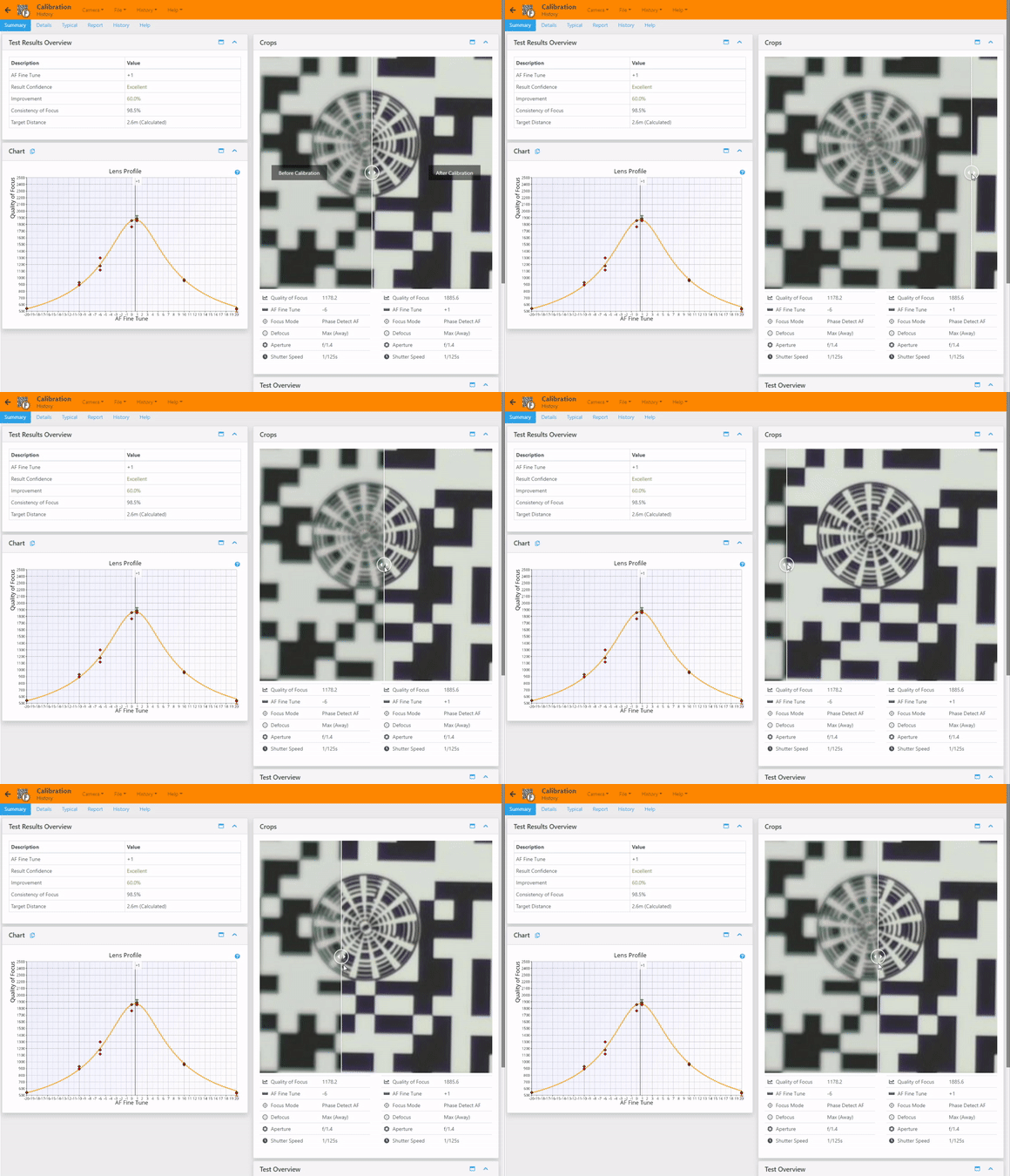
Comparing Crops
Test results often show two crops with a slider between them. Drag the slider left and right to compare the images:
Moving around the User Interface
You can move around FoCal while a test is running.
For example, while a calibration runs you can review earlier results in History, or look at the results of your last Aperture Sharpness test from the menu.