Camera Setup (Physical)
On this page
Battery
First, make sure the battery in your camera is charged. You shouldn’t really run any tests with a battery level lower than 50%. As the battery level drops, the control of the camera can become unreliable (the camera may limit operation of certain features as the level drops and this can cause FoCal to behave in unexpected ways).
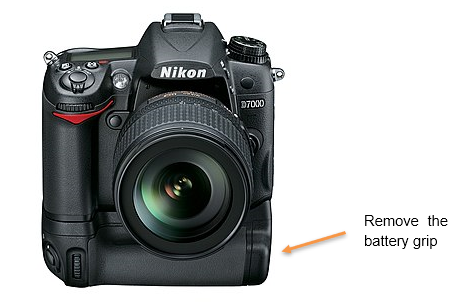
Remove Battery Grip
When mounted on a tripod, a battery grip can cause significant extra vibration. We strongly recommend removing the battery grip before running FoCal tests, or you may get inconsistent or inaccurate results.
Tripod
In order to use FoCal, your camera needs to be stable and unable to move, so typically should be attached to a sturdy tripod. If the tripod needs to be raised, extend using the thicker (higher) legs first and try to avoid extending the centre column of a tripod if possible as this will make the camera more susceptible to vibration.
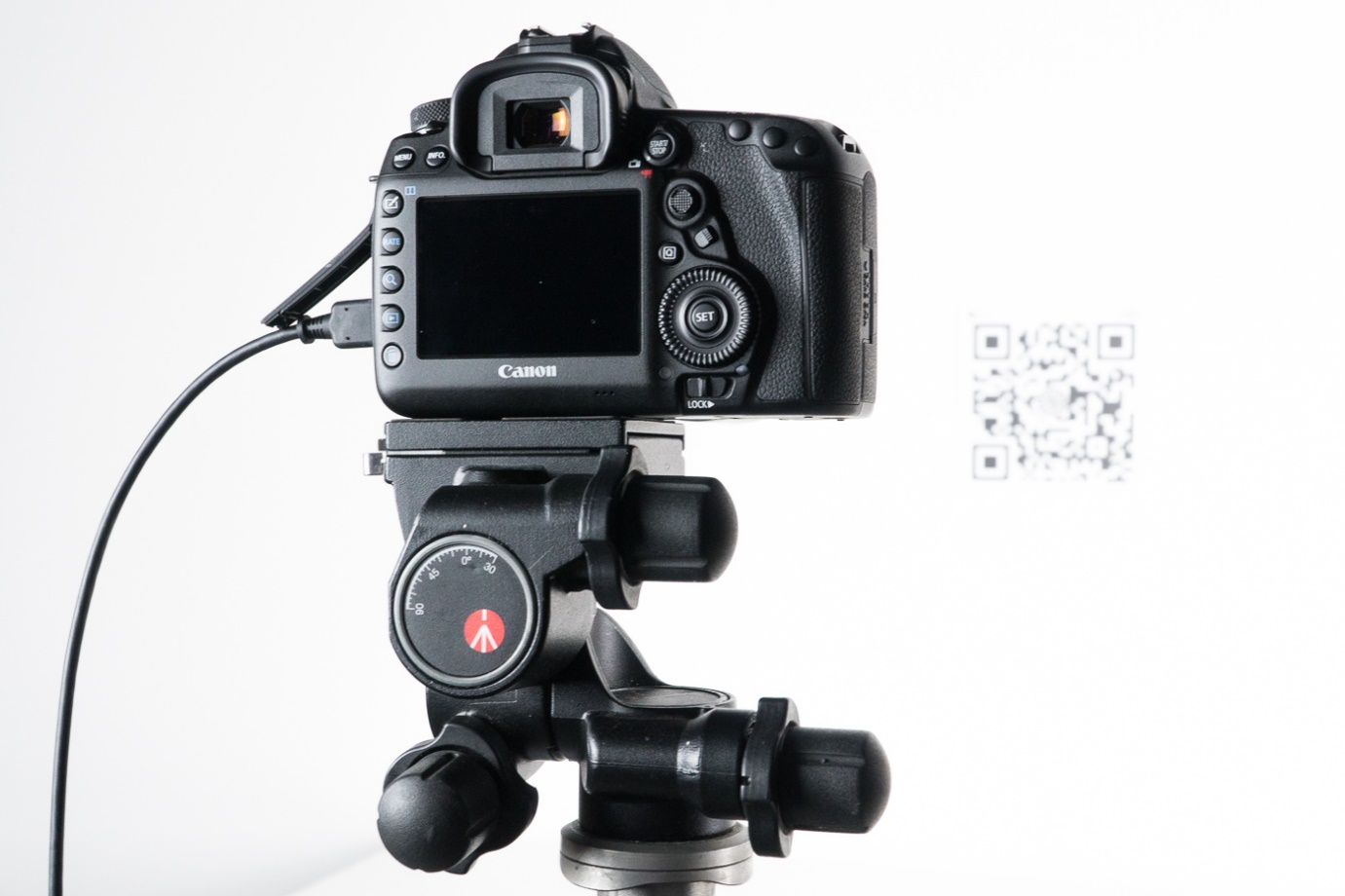
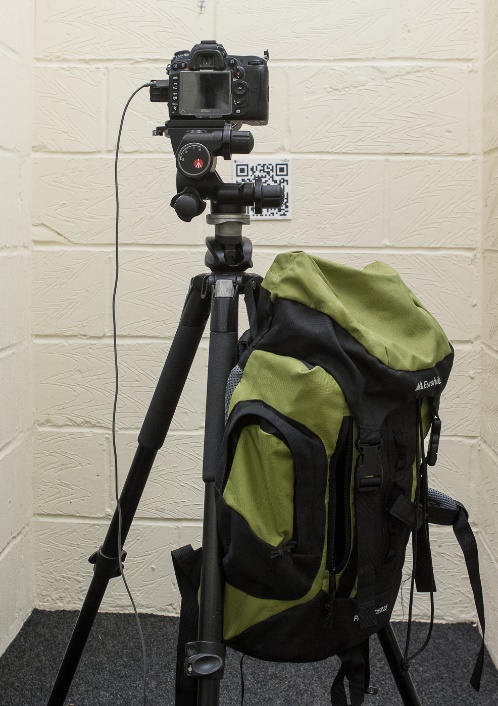
For extra stability, a lot of tripods have a hook underneath where you can hang something heavy (e.g. a camera bag) in order to further stabilise the tripod and camera:
Tripod / Target relative position
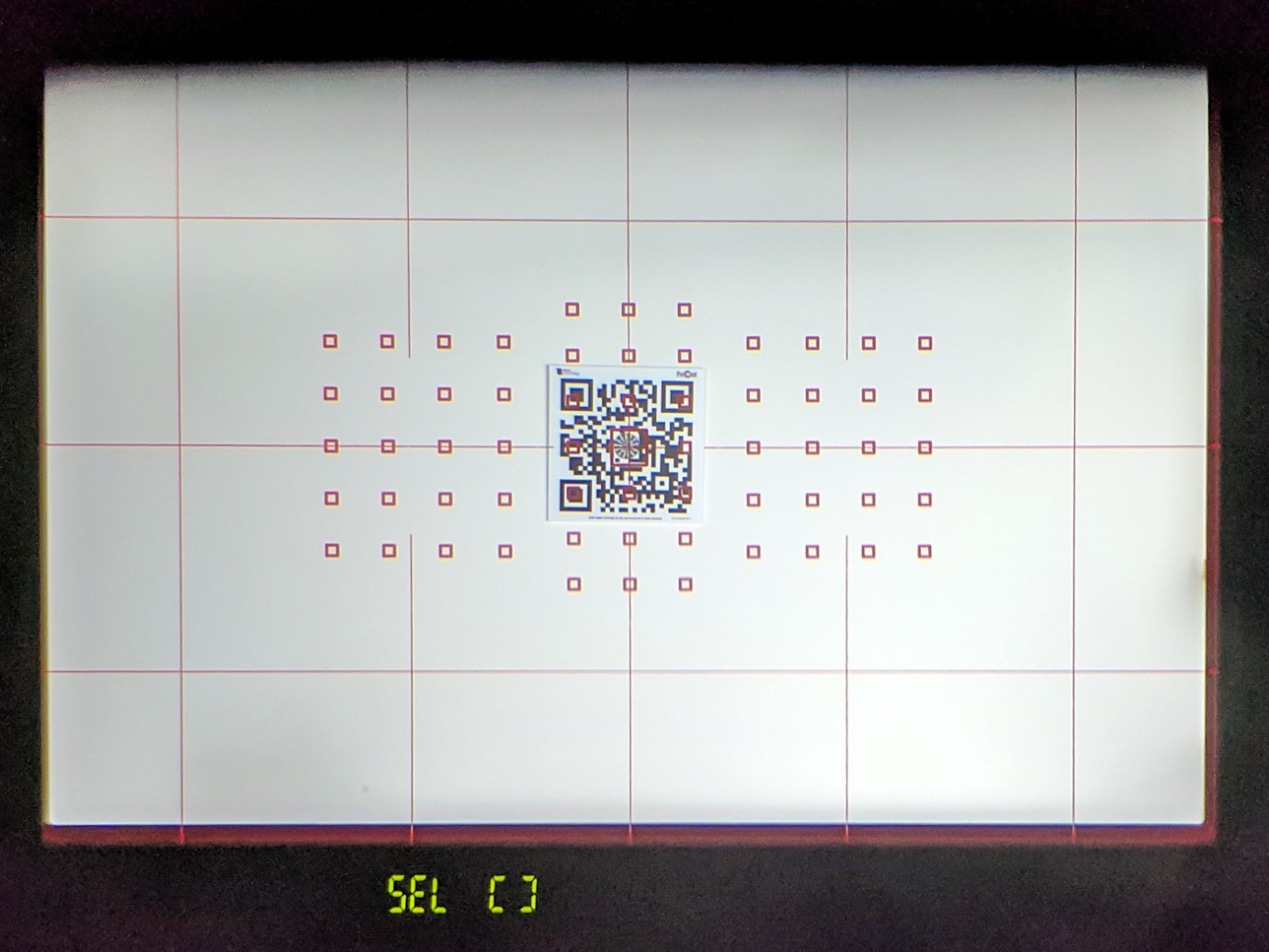
The target should be firmly attached to a vertical surface at the same height as the camera lens. The Target Setup utility will help you ensure the target is in the correct position, but to get a good initial position you should look through the camera viewfinder and position the centre focus point over the middle of the target as shown below:
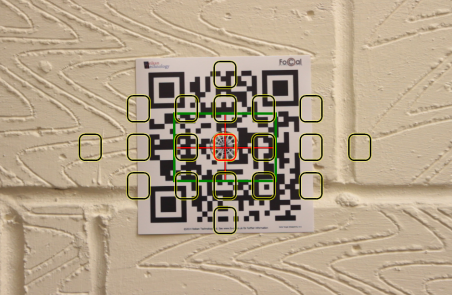
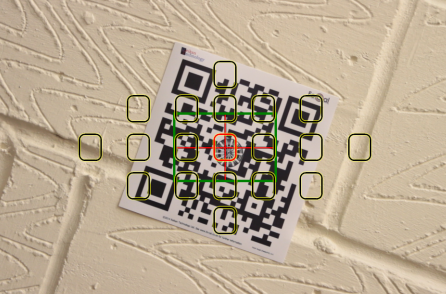
Ensure the target is not excessively rotated – the following setup would be bad:
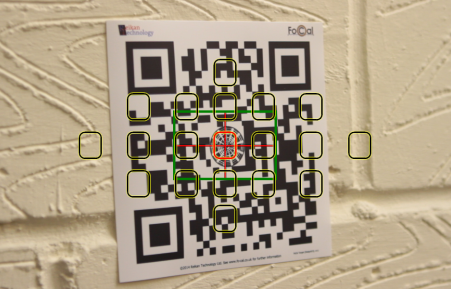
And make sure you’re approximately head-on to the target and not too far off to one side – again this would be bad:
Roughly align the centre focus point
Look through the viewfinder and approximately line the centre focus point with the centre circle of the target. It doesn't need to be perfect: if you're too far from the middle, FoCal warns you when you run Target Setup Utility.
Connect to the computer
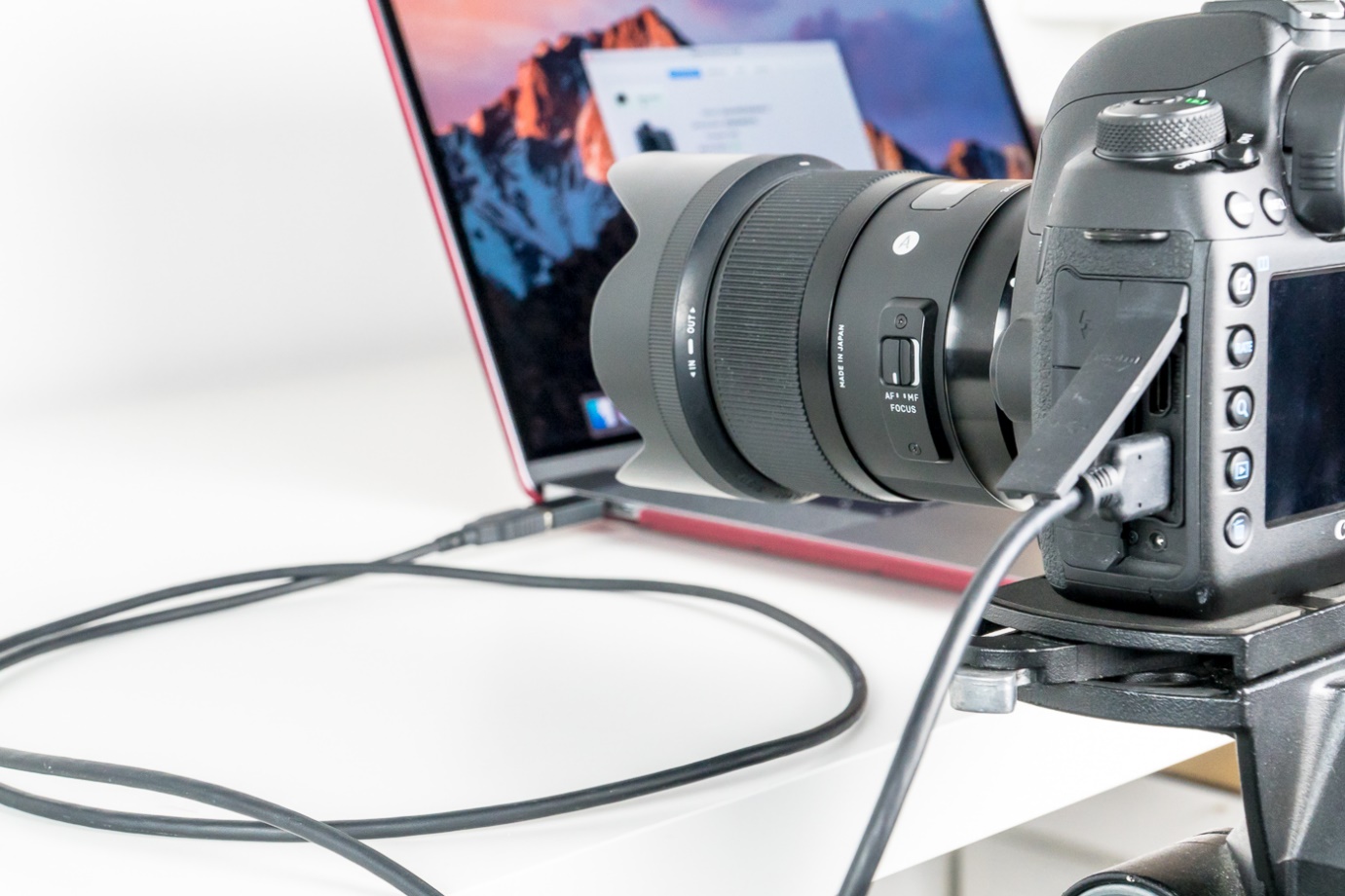
You’ll need to connect your camera to the computer with a USB cable. It’s best to use the USB cable supplied with your camera, otherwise you can use a compatible high-quality cable.
Keep the cable no longer than it needs to be, and never longer than 5 metres. When users contact us about odd problems with FoCal, our first suggestion is to replace the USB cable, and very often that fixes it.
Wi-Fi Connection
FoCal can also connect to selected Canon and Nikon cameras over the camera's built-in Wi-Fi (or Ethernet, where the camera has it). Wi-Fi was completely revamped in FoCal 6 and is much more reliable. Check the camera support page to see if your camera is supported, and see Connecting to FoCal with Camera WiFi or Ethernet for how to connect.
Cover the eyepiece (DSLR only)
For the very best results, it's a good idea to cover the viewfinder of the camera. The camera is usually used with a human head stopping light from entering the viewfinder, but this isn't the case when running with FoCal and stray light can upset the metering system and cause calibration problems.
Some cameras have a built-in switch to cover the eyepiece (Canon EOS-1 series and lots of Nikon cameras), while others may have an attachment on the strap that can cover the eyepiece (low- and mid-range Canon’s typically). If you have neither, a piece of opaque paper hung over the back of the camera will suffice.
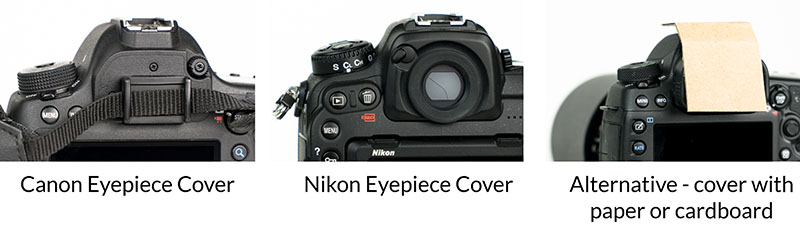
Note that you should NOT do this for mirrorless cameras. Firstly, the metering system is not affected by stray light entering the eye-piece on these cameras. And secondly, mirrorless cameras usually have an eye-detector around the eyepiece, and if covered will switch off the main display on the back of the camera, making any necessary interaction with the camera impossible.
Continue on to Camera Setup - Settings